

The Connection Between Domain and Server: A Practical Guide for Website Management
1.0 Introduction
When launching a website, two things matter most: the Domain and the Server. The domain is the name people type; the server is where your website actually lives. A website can run perfectly with just these two.
Some teams (including ours at times) add Cloudflare as an optional layer for extra speed, security, and easier DNS management. This is useful—but not required for a website to work.
Many beginners ask:
- “What’s the difference between a domain and a server?”
- “Where do A, MX, CNAME, and TXT records come in?”
- “Do I need Cloudflare?”
By the end of this article, you’ll clearly understand each part and how they connect—in plain language and with practical examples.
1.1 Purpose of the Article
The purpose of this article is to help you (and your team or clients) understand the relationship between Domain and Server, which are the two main components that make a website work.
In addition, we will also introduce Cloudflare as an optional layer that can improve speed, security, and control — but is not required for your website to function.
You’ll learn:
- What each component does:
Understand the different roles of a domain and a server in making your website accessible online, and how Cloudflare can enhance them if added. - Why correct setup is important for your website and emails to work:
Discover why accurate DNS configuration ensures your website loads correctly and your emails are delivered without issues. - How they connect with each other:
Learn how your domain communicates with your server through DNS records, and how Cloudflare can act as an intermediary for better performance.
This guide is especially useful for people who are setting up their own website, managing DNS records, or trying to understand what their web developer or hosting provider is referring to.
1.2 Who Should Read This
This article is designed for anyone who wants to understand how a website actually works behind the scenes — especially the connection between Domain and Server, and the optional role of Cloudflare in improving performance and protection.
This article is written for:
- IT support or technical officers
Who oversee server settings, DNS configurations, or security layers such as SSL and Cloudflare. - Students or beginners in web management
Who are learning the fundamentals of how websites, DNS, and hosting work together in real-world setups. - Administrative or marketing staff
Who are responsible for updating website information, managing email domains, or communicating with web developers. - Business owners and entrepreneurs
Who manage their own company websites and want a clear understanding of how their domain and hosting interact.
You don’t need deep technical knowledge — just curiosity and the willingness to understand how these three elements connect to make a website function smoothly.
1.3 Why Understanding Server, Domain and Cloudflare, Matters
When a website encounters problems such as “site not found,” “email not working,” or “SSL error,” the cause almost always lies in the connection between the Domain and the Server.
Understanding how these two components work together helps you manage your website more effectively and solve common issues with confidence
You’ll benefit from this knowledge because it allows you to:
- Communicate clearly with your web host or developer
- Identify and fix minor issues quickly
- Manage your domain and DNS confidently
In short, having a clear grasp of the Domain–Server relationship saves time, reduces confusion, and gives you full control over your online presence.
2.0 The Big Picture: How Everything Connects
Before diving into the technical details, let’s first understand the big picture.
When someone types your website address — for example, www.example.com — several things happen behind the scenes within just a few seconds.
The Domain acts as the website’s name, telling the internet where to find your site. The Server is where your website actually lives — it stores all your web pages, images, and data. Together, the Domain and Server are the core foundation of every website. Without either one, your website cannot function.
However, some businesses and developers choose to add Cloudflare as an optional third layer between the Domain and Server. This layer helps:
- Protect the website from attacks,
- Speed up loading through global caching, and
- Simplify DNS and SSL management.
Your website will still work perfectly fine without Cloudflare. Adding it simply provides extra speed, security, and control, which can be helpful for larger or more active websites.
2.1 Simple Analogy: House, Address, and Security Gate
Here’s the easiest way to imagine it:
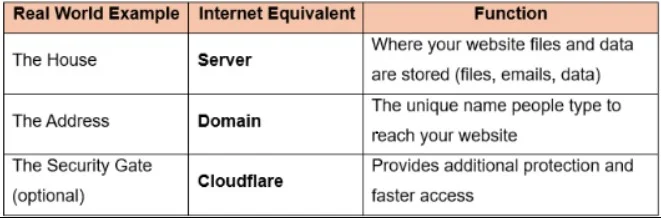
When someone “visits” your website, it’s like looking up your address (Domain), arriving at your house (Server), and — if used — passing through a secure gate (Cloudflare) that verifies visitors and ensures smooth entry.
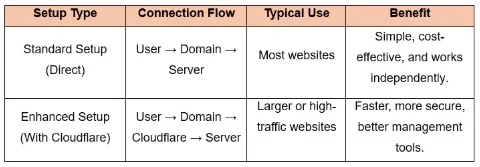
2.2 Visual Flow: From Domain → Server (and with Optional Cloudflare)
Now that you understand the basic roles, let’s look at how the connection actually works. When a user visits your website, their browser follows a specific path to find and load your site.
There are two common connection methods:
- The Standard Setup (Domain → Server) — used by most websites.
- The Enhanced Setup (Domain → Cloudflare → Server) — used when extra protection and performance are desired.
2.2 Standard Practice – Direct Connection (Domain → Server)
This is the most common and fundamental setup used worldwide. Your website connects directly between the Domain and the Server.
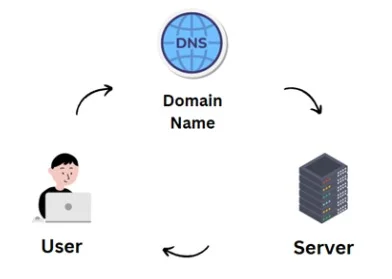
- User → Domain Name
– The user searches for your domain. The DNS looks up your nameservers. - Domain Name → Server
– This time, the nameservers point directly to your web hosting server (no Cloudflare in between).
– The request goes straight to your server’s IP address defined by the A record. - Server → User
– The server responds directly and shows the website to the user.
This setup is simpler but less secure. There’s no protection layer, caching, or performance boost — your server handles all requests on its own.
2.2.2 Optional Enhancement – Using Cloudflare as a Middle Layer
Some organizations choose to add Cloudflare between the domain and the server to enhance performance and security.
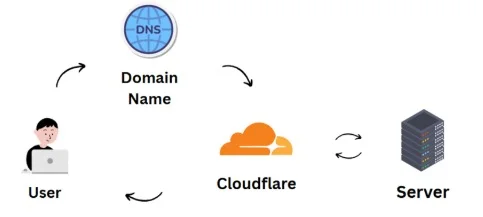
- User → Domain Name
– The user opens a browser and searches www.example.com.
– The browser asks the Domain Name System (DNS): “Where should I go to find this website?” - Domain Name → Cloudflare
– The DNS checks your domain’s nameservers (NS1, NS2).
– Since your domain is connected to Cloudflare, the traffic is sent there first.
– Cloudflare reads your DNS records (A, MX, CNAME, TXT) and decides which server to connect to. - Cloudflare → Server
– Cloudflare then forwards the request to your actual server where the website files live.
– Before doing that, it filters harmful requests, adds SSL security, and speeds up loading using its CDN cache. - Server → Cloudflare → User
– The server sends the website content (HTML, images, etc.) back to Cloudflare,
– and Cloudflare delivers it safely to the user’s browser.
This setup is not mandatory, but it offers advantages such as:
- Faster loading speeds through global caching (CDN).
- Protection from DDoS and bot attacks.
- Easier DNS and SSL management in one dashboard.
It’s often used by larger companies or websites that receive heavy traffic or need tighter security control.
2.2.2 Summary for Visual Flow
3.0 Domain – Your Website’s Name on the Internet
When you type a website like www.example.com.my, what you’re really typing is a domain name — the public address of your digital space.
It’s the part people remember easily instead of long, complicated server numbers (like 192.168.45.21). In simple terms, your domain is your online identity. It tells everyone “Where your website lives.”
3.1 What Is a Domain
Think of a domain like your house address. When someone types it, the internet knows exactly where to go to find your website. But just like a real address needs proper signage, your domain needs something called Name Servers (NS) to guide visitors to the right location.
Domains usually come in three parts:
- www → the prefix (subdomain)
- example → the main name you choose
- com.my → the domain extension, which shows the type or country of the domain
– .com = commercial category
– .my = Malaysia (country code)
Together, these form your unique identity on the web.
3.2 Name Servers (NS1 & NS2) Explained
Every domain has two or more Name Servers (NS1, NS2). These are like digital signboards that tell browsers which direction to go when looking for your website.
For example:
- NS1.example.com
- NS2.example.com
If your domain uses your hosting provider’s name servers, the DNS is managed directly inside your hosting panel (like cPanel or DirectAdmin).
If you prefer more control, you can optionally use Cloudflare’s name servers instead, managing all DNS records inside the Cloudflare dashboard.
Tip: Whether you use your host’s Name Servers or Cloudflare’s, the function is the same — both guide visitors to your server. Cloudflare just adds extra tools for performance and protection.
4.0 Server – The Place Where Your Website Lives
If the domain is your house address, then the server is the actual house where all your furniture (website files, emails, databases) are kept. It’s the physical or cloud-based computer that stores everything people see when they visit your site.
When someone types your domain name, the internet follows the directions from the DNS records and lands on your server’s IP address — that’s where your real content lives.
4.1 What Is a Server
A server is a high-performance computer that delivers web pages, images, emails, and data to users on request. It runs 24/7 so your website is always available.
In web hosting, your server may handle:
- Website hosting (your pages, images, scripts)
- Email hosting (your company’s mailboxes)
- Database storage (customer info, products, forms)
So, every time someone visits your site or sends you an email, they’re actually connected to your server — even though they only see the nice front-end design.
4.2 Understanding DNS Records Inside the Server
Inside the server (or Cloudflare, if you use it as DNS manager), there are a few key “records” that tell the internet exactly what to do. These records act like instructions or signboards for your domain.
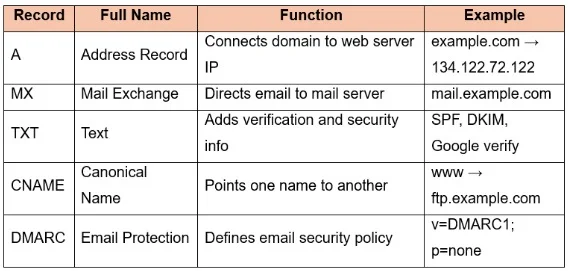
4.2.1 A Record (Website IP)
The A Record connects your domain name to your server’s IP address. It’s what makes www.example.com load your actual website. Think of it like a GPS pin that says, “this is where the site lives.”
- For example: example.com → 134.122.72.122

4.2.2 MX Record (Email Routing)
The MX Record (Mail exchange) tells email systems where to deliver your company’s emails. Without it, messages to info@example.com wouldn’t know where to go.
- For example: Mail for example.com → mail-a.example.com
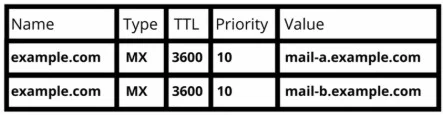
If your email is hosted on Google Workspace or Microsoft 365, the MX record will point to their mail servers instead.
4.2.3 TXT Record (Verification & Security)
The TXT Record is used mainly for verification and security. It helps verify ownership (e.g., Google Search Console) and protect emails (e.g., SPF, DKIM).
- For example:
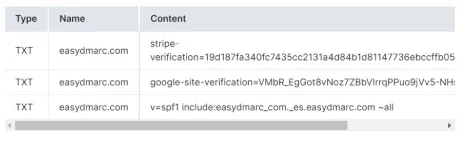
It’s not something users see — but it’s crucial for trust and authentication.
4.2.4 CNAME Record (Alias for Domain)
The CNAME Record (Canonical Name) is like a shortcut. It lets one domain point to another domain instead of a direct IP address.
- For example: www.example.com → ftp.example.com
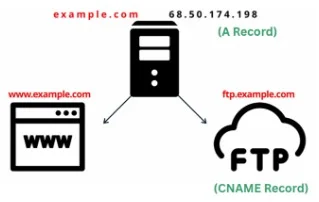
This keeps your DNS clean and avoids duplicate IP entries.
4.2.5 DMARC (Email Protection Record)
The DMARC Record adds another layer of email protection. It tells other email servers how to handle suspicious or fake messages pretending to be from your domain.
- For example:
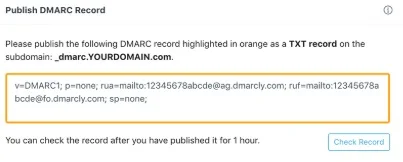
This helps prevent phishing and improves your domain’s email reputation.
4.2.6 Summary Table for DNS Records
5.0 Cloudflare – Optional Performance and Security Layer
While your website can function perfectly with just a Domain and a Server, some organizations choose to add Cloudflare as an optional enhancement.
Cloudflare works as a smart, cloud-based service that sits between your visitors and your server — improving security, speed, and reliability.
Think of Cloudflare as a protective gate in front of your server. Visitors still reach your website normally, but Cloudflare helps manage and optimize the traffic before it reaches your server.
5.1 What Is Cloudflare
Cloudflare is an online platform that provides:
- DNS management – You can host and edit DNS records directly in its dashboard.
- Content Delivery Network (CDN) – Stores cached copies of your website on global servers for faster loading.
- Website protection – Filters out harmful traffic, spam, or DDoS attacks.
- SSL management – Enables HTTPS encryption easily and automatically.
Note: Cloudflare doesn’t host your website or emails. Your website still lives on your own server — Cloudflare simply acts as a bridge that makes delivery faster and safer.
5.2 When to Use Cloudflare
Using Cloudflare is not mandatory, but it becomes useful in certain situations:
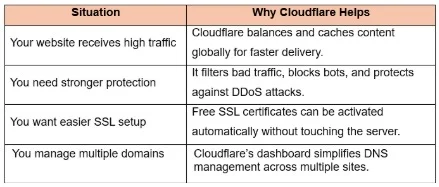
For smaller or low-traffic websites, you can continue using your hosting provider’s DNS and server directly — it will work just as well.
5.3 How It Works (Optional Flow)
If you decide to use Cloudflare, the process looks like this:
- Change Name Servers
You log in to your domain registrar and replace your hosting’s Name Servers with Cloudflare’s (e.g., ns1.cloudflare.com, ns2.cloudflare.com). - Cloudflare Manages DNS
You then add your A, MX, TXT, and CNAME records inside the Cloudflare dashboard. - Cloudflare Filters and Delivers
When a user visits your site: - Cloudflare receives the request first,
- Filters and caches it for speed and security,
- Forwards it to your actual server,
- Then sends the result back to the user.
This adds a protective and performance layer without changing your hosting environment.
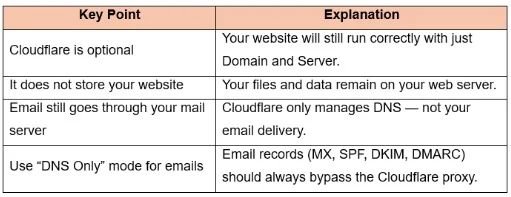
5.4 Important to Remember
5.5 Summary
Cloudflare acts as an optional performance and security layer — not a core component of your website setup. If you want your website to load faster, stay more secure, and handle high traffic smoothly, Cloudflare is worth enabling. But if your site is small or your server already has strong security and caching in place, your website will function just as well without it.
6.0 Conclusion
A fully functional website is built on two main components — the Domain and the Server. The domain is the name that people type to find your website, while the server is the physical or cloud-based computer that stores and delivers your website’s content. When these two elements are connected correctly through proper DNS configuration, your website becomes accessible to anyone, anywhere, at any time.
6.1 Key Takeaways
Here’s a simple way to remember it:
- Domain: Your Identity
It’s like your home address on the internet. Make sure your Name Servers (NS1/NS2) are set correctly, so visitors are guided to the right place. - Server: Your Home
This is where all your website pages, emails, and data actually stay. Your A, MX, TXT, CNAME, and DMARC records tell the internet how to reach it safely. - Cloudflare (Optional): Your Protector and Speed Booster
It’s the middle layer that keeps your website secure, blocks attacks, manages DNS, and makes your pages load faster using its global network.
In short:
- Domain + Server = Essential
- Cloudflare = Optional Enhancement
6.2 Why Every Business Should Understand These Basics
In today’s digital landscape, every organization — large or small — depends on having a reliable online presence. By understanding how the domain and server connect, you can:
- Communicate more effectively with your hosting or IT provider.
- Troubleshoot simple issues such as website downtime or email delivery problems.
- Protect your online brand by managing your own DNS and security settings confidently.
- Decide whether adding Cloudflare is beneficial for your business needs.
When you have a clear grasp of these fundamentals, managing your company website becomes simpler, faster, and more secure — giving you full control over your digital presence.
7.0 References
8.0 Ready to Elevate Your Website?
Get a professional website built by Latitude Innovation.
WhatsApp Us: https://wa.me/60104348799/
Our Services: https://latitudeinnovation.com.my/web-design-service/