

How to Fix Search & Filter Not Working in WPML Chinese (or Any Non-English) Language
1.0 The Problem
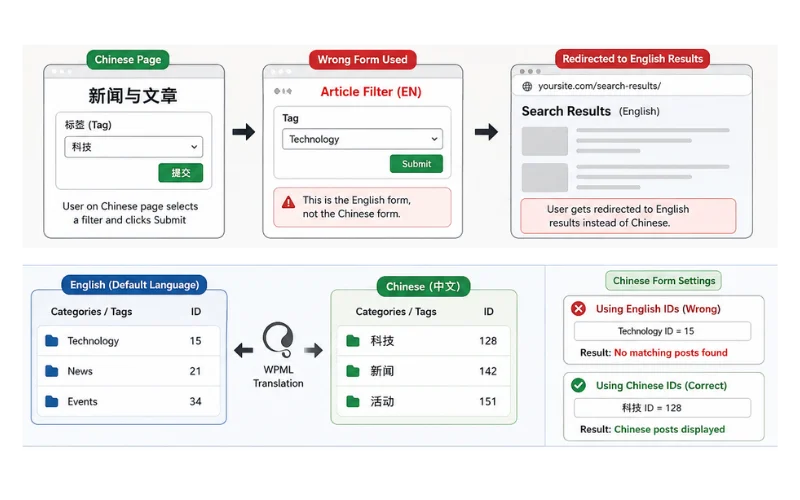
A user is browsing the Chinese version of our site. They choose a tag from the filter dropdown, click “Submit” and instead of seeing Chinese results, they suddenly get yanked back to the English results page, or get dropped on a broken homepage URL.
This happens because Search & Filter forms are language-blind by default. If we don’t explicitly configure a form for each language, it will always panic and fall back to the English defaults.
2.0 Why This Happens
For multilingual filtering to work seamlessly, three moving parts must align. If even one is misconfigured, the whole system breaks:
- The Elementor Link: The Elementor page template needs to point to the correct language version of the filter. If the Chinese page uses the English form, it will behave like an English form.
- The Redirect URL: Each form translation has its own “Results URL” setting. If that fields points to /search-results/, that’s exactly where users end up.
- The Content IDs: WordPress treats translated categories and tags as entirely different items with unique ID numbers. If the Chinese form is still looking for English IDs, it won’t find a single post.
3.0 The Fix, Step by Step
Step 1: Clone the Filter Form for Chinese
First, we need to create a dedicated version of the form that speaks Chinese.
- Go to Search & Filter → All Forms and open your main filter (e.g., Article Filter).
- Look at the right-hand sidebar for the Language / Translations box.
- Click the pencil icon ✏️ next to 中文 (or your target language).
- This creates or opens the Chinese version of the form. Let’s rename it to something recognizable, like 文章过滤器.
Step 2: Fix the Results URL
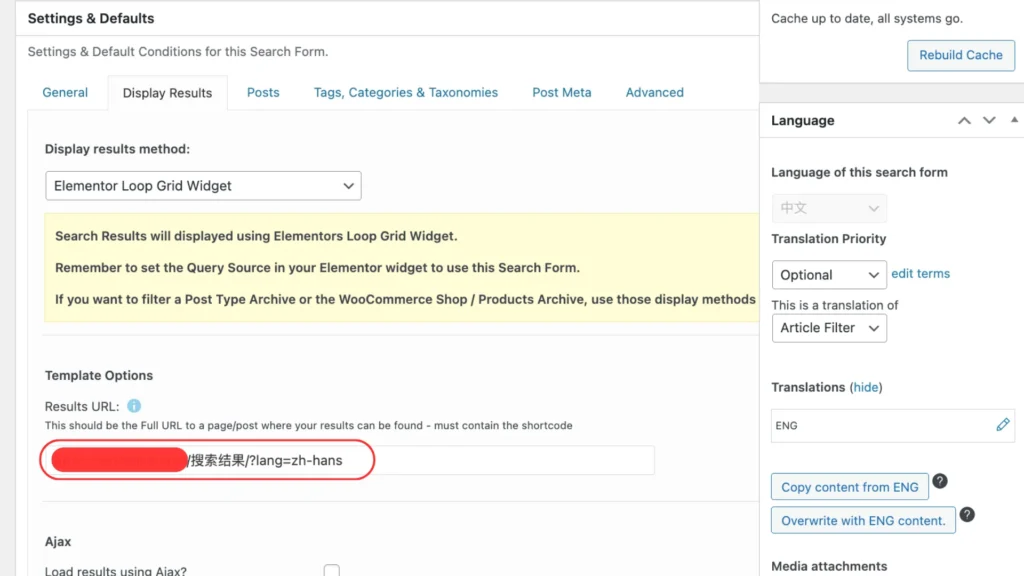
Inside your new Chinese form, click on the Display Results tab. We need to tell it exactly where to send users after they click search.
Watch out for a common trap: Do not copy and paste the URL directly from your live browser address bar. The browser hides special character encodings (like %e6%90%9c), which will corrupt and break the link when you save the form.
Instead, use one of these two safe methods in the Results URL field:
- Method A (Direct Slug): Type out the Chinese URL manually, character by character:
[https://yoursite.com/搜索结果/?lang=zh-hans](https://yoursite.com/搜索结果/?lang=zh-hans) - Method B (English Fallback – Recommended): Use the clean English URL and let WPML handle the heavy lifting via the language parameter:
[https://yoursite.com/search-results/?lang=zh-hans](https://yoursite.com/search-results/?lang=zh-hans)
Note: If your URL already has a question mark in it, change ?lang= to &lang=.
Step 3: Update Your Category and Tag IDs
Because WordPress gives translated tags brand new database IDs, we have to swap the English IDs out for the Chinese ones.
- Open a new tab and go to Posts → Categories (or Tags).
- Use the WPML language switcher at the top of your admin dashboard to switch to Chinese.
- Hover your mouse over a category name and look at the very bottom left of your browser window.
- You’ll see a long URL string—look closely for tag_ID=XXX. That number is your Chinese ID.
- Go back to your Chinese form, open the Tags, Categories & Taxonomies tab, and swap the old English numbers for these new ones.
To find and update these IDs, follow this workflow:
Workflow 1
1.Switch Admin Language:Crucial first step.
Always change the top WPML bar to ‘Chinese’ before looking for IDs.
Workflow 2
2.Inspect the Category/Tag:
Hover over the target item and extract the tag_ID number from the browser preview link.
Workflow 3
3.Update Form Settings:
Paste those specific Chinese ID numbers into the Chinese form fields.
Step 4: Map the Form in Elementor
Now we just need to make sure the live page is actually using our new form.
- Open your Chinese page (e.g., 新闻与文章) inside the Elementor Editor.
- Click on the Search & Filter Form widget.
- In the left-hand content panel, look for the form dropdown and switch it from Article Filter to 文章过滤器.
- Hit Update to save the page.
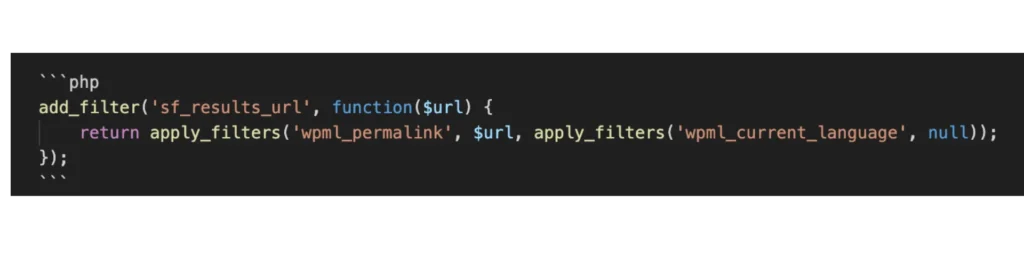
Step 5 (Optional): The “Just in Case” Code Snippet
If your redirects are still acting moody and ignoring the language settings, we can force WordPress to behave using a quick PHP filter.
Pop this snippet into WPCode (Plugins → WPCode → Add Snippet → PHP Snippet):
4.0 Quick Launch Checklist
Run through this brief checklist before calling the job done:
- [ ] A Chinese translation of the filter form exists.
- [ ] The Chinese form’s Results URL points to the Chinese results page (no copy-pasted encoded links!).
- [ ] Category/Tag IDs inside the Chinese form match the Chinese database IDs.
- [ ] The Elementor widget on the Chinese page is actively selected to use the Chinese form.
- [ ] Tested live: Filtering a Chinese page displays Chinese results and stays on the Chinese URL.
5.0 Conclusion
At the end of the day, WPML and Search & Filter Pro are great tools, but they don’t automatically sync up behind the scenes. Treat every language version of a form as a completely independent asset. Configure its URLs, map its IDs, connect it to Elementor, and you’ll have perfect multilingual filtering every time.