
Canva vs Figma vs Penpot. Which Design Tool Actually Helps You Work Faster as a UI UX Designer
- Canva vs Figma vs Penpot. Which Design Tool Actually Helps You Work Faster as a UI UX Designer
- Canva. Still the Easiest and Fastest For Visual Layout Work
- Figma. More Setup at First, Much Faster Later
- Penpot. A Newer Open Source Option That Feels Familiar
- Which One Actually Improves Your Design Speed
- My Practical Recommendation Based On Real Workflow
- The Canva Features I Personally Like The Most
- Final Thought
Canva vs Figma vs Penpot. Which Design Tool Actually Helps You Work Faster as a UI UX Designer
As a UI UX designer, one thing I’ve realized over time is that good design is not only about how things look. It is also about how fast and smoothly you can get your ideas into a clear visual form. Deadlines are real. Developer handoff is real. Client revisions are real. So the design tool you choose really affects your daily workflow more than you think.
I started with Canva for most of my layout work. It was simple, fast, and honestly very comfortable. Most of my designs were exported as PDF and passed to developers who built the site using Elementor. For that kind of workflow, Canva worked perfectly fine.
But when I started handling more structured UI screens and system style designs, I began to feel that I needed something more powerful, but not something that would slow me down too much. That is where tools like Figma and Penpot come into the picture.
I want to share a practical comparison between Canva, Figma, and Penpot based on real usage, not just feature lists. Especially if your work involves website layouts, PDF delivery, Elementor builds, and system UI design.
Canva. Still the Easiest and Fastest For Visual Layout Work
I still think Canva is one of the fastest tools when the goal is to produce something visual and presentable quickly. It removes almost all technical barriers. You open it and you start designing right away.
Canva works really well when you need
- quick layout concepts
• client presentation visuals
• landing page mockups
• design references that will be exported as PDF
• simple page structures without deep interaction
The template system and drag and drop behavior save a lot of time. You do not need to set up grids or component logic. That makes it very good for speed in early design stages.
Where Canva becomes harder to manage is when the design grows more complex. For example when you have many screens, repeated UI elements, or strict consistency requirements. There is no strong component system, so repeated changes become manual work. That is where it starts to slow you down instead of speeding you up.
Figma. More Setup at First, Much Faster Later
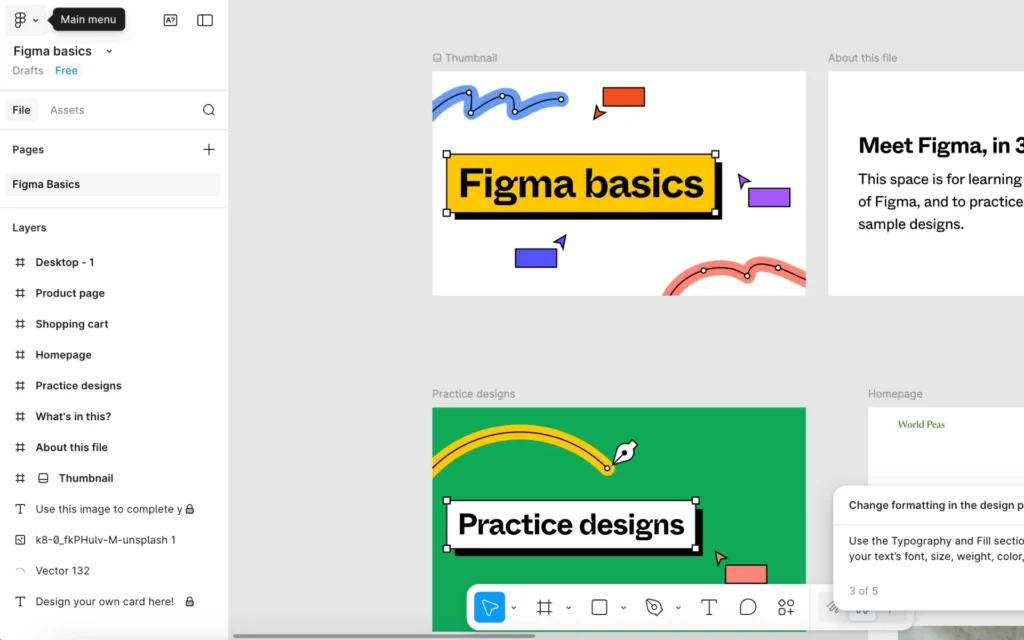
Figma feels more serious when you first start using it. There are more controls, more structure, and more things to learn. Some designers feel slower in Figma during the early phase, and that is normal.
But once you understand the basics and build your foundation, Figma becomes very efficient.
Figma helps speed up professional UI work because you can
- create reusable components like buttons and cards
• define global text and color styles
• use auto layout so designs adjust with content
• duplicate structured sections quickly
• build interactive flows between screens
• let developers inspect spacing and sizes directly
For system and dashboard design, this structure saves a lot of time. You are not redrawing everything again and again. You are assembling from a design system.
For Elementor based websites, Figma is also helpful because you can plan consistent spacing, layout behavior, and reusable UI blocks before development starts. That reduces revision cycles later.
So even though Figma takes a bit more effort at the beginning, it usually gives better speed for medium and large UI projects.
Penpot. A Newer Open Source Option That Feels Familiar
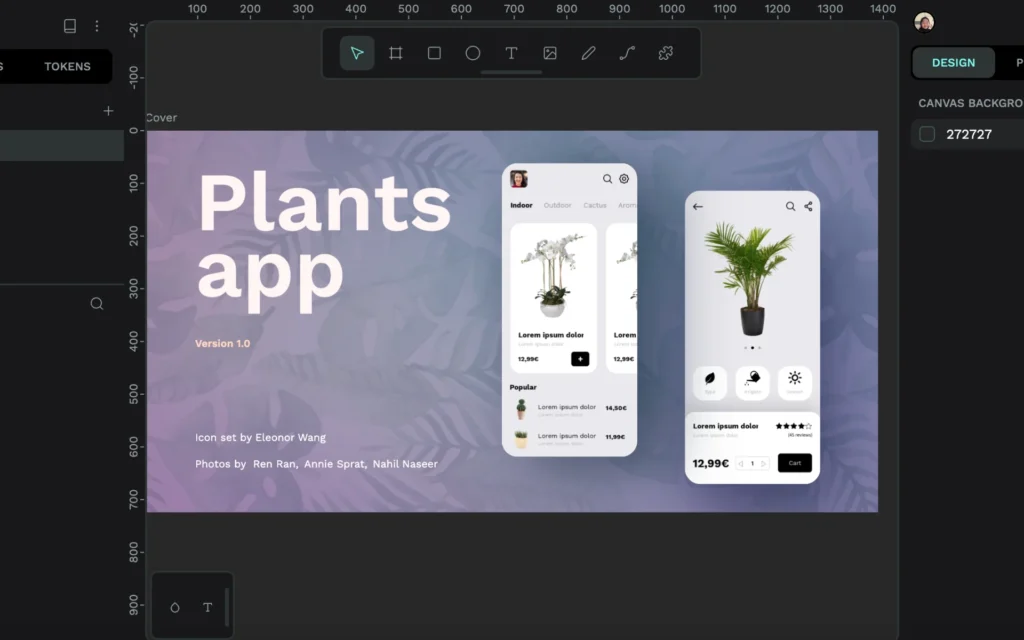
Penpot is a newer tool compared to Canva and Figma, but it is getting more attention, especially among designers and teams who prefer open source solutions. The first time I tried it, the interface felt quite familiar, somewhere between Figma and other vector UI tools.
Penpot is built specifically for interface design and prototyping, not general graphics. That already makes it more suitable for UI UX work than Canva.
Penpot is a good fit if you are looking for
- professional UI layout design
• reusable components
• interactive prototypes
• team collaboration
• a free tool without subscription limits
One big plus point is that it is open source. Your workflow is not locked behind a paid ecosystem. For some teams, that matters a lot.
At the same time, Penpot is still growing. Compared to Figma, the plugin ecosystem is smaller and there are fewer ready made community resources. Some workflows feel less polished. But for many UI projects, it is already more than usable.
If you want something more structured than Canva and more flexible in licensing than Figma, Penpot is worth considering.
Which One Actually Improves Your Design Speed
From my experience, speed depends on the type of work you are doing, not just the tool itself.
If your output is mostly visual layouts and PDFs for reference, Canva gives you the fastest path from idea to deliverable. It is simple and direct.
If your work involves structured UI, repeated components, and multi screen flows, Figma gives you better long term speed. The early setup takes time, but repeated work becomes much faster.
If you want a professional UI tool that is free and open, and you are okay with a slightly smaller ecosystem, Penpot is a solid alternative that keeps improving.
My Practical Recommendation Based On Real Workflow
For a workflow where designs are shared as PDF, websites are built with Elementor, and system UI design is increasing, this is the most practical approach.
Use Canva when you need fast visual concepts and presentation ready layouts.
Use Figma when the project needs structure, reusable components, and system level UI thinking.
Use Penpot if you want similar structured UI capability but prefer an open source and cost free platform.
The Canva Features I Personally Like The Most
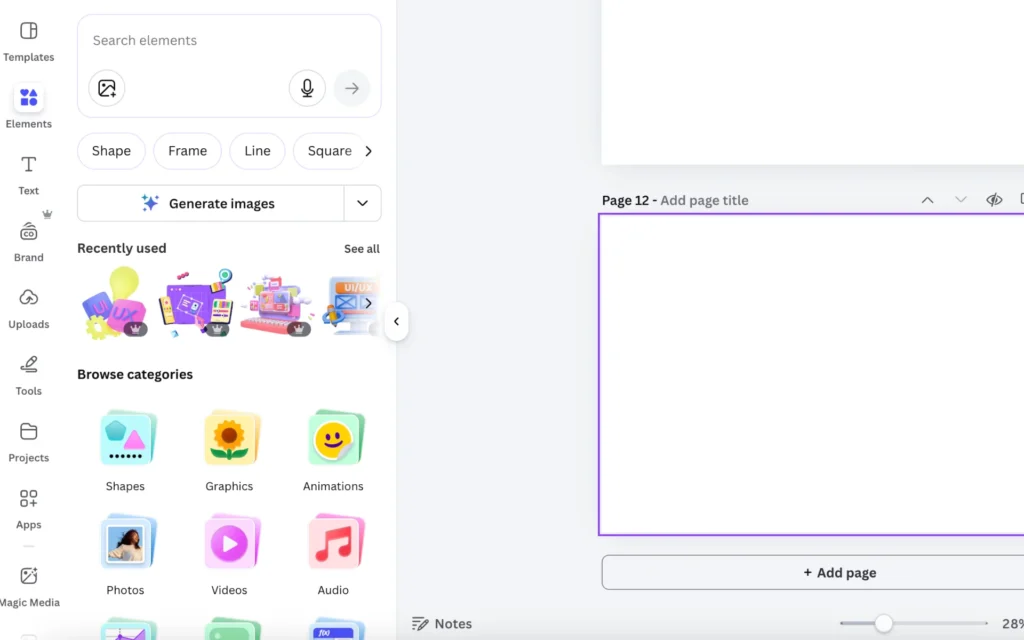
One reason Canva still works well for me is because of a few features that genuinely make the design process faster. These features reduce setup time and allow me to focus more on layout ideas instead of technical adjustments.
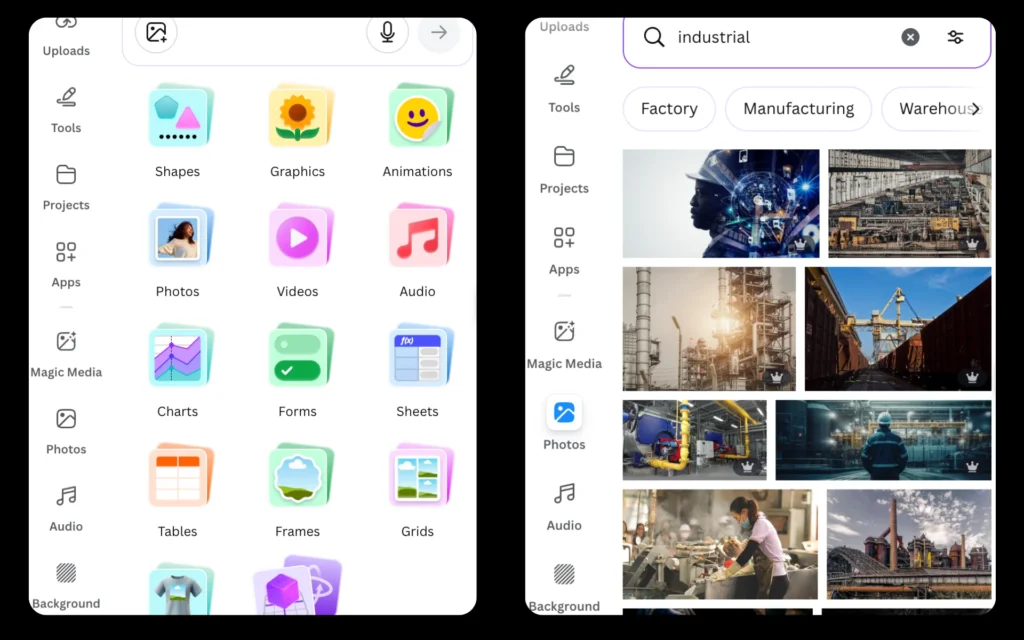
- Fast asset searching (photos, icons, elements)
The built-in asset library is extremely convenient. Instead of browsing external sites for icons or images, I can find something usable within seconds. That alone saves a surprising amount of time during concept stages.
- Huge Template and Asset Library
Canva gives access to millions of templates, icons, photos, and graphics inside the editor.
This saves time because:
- You don’t start from blank
• You don’t search external resources
• You can quickly test multiple layout directions
For concept design or client presentations, this is a massive speed advantage.
Final Thought
The best tool is not the one with the most features. It is the one that keeps your design momentum strong and reduces friction between your idea and your output.
For quick visuals, Canva is still the fastest. For professional UI UX systems, Figma is still the strongest. For an open and growing alternative, Penpot is a very promising choice.
Choosing the right tool for the right level of work is what really improves your design speed and keeps your timeline under control.