

How to Set Up Webmail in Cloudflare DNS: IP Setup Guide
1.0 Introduction
If you manage a website and also run your own mail server, learning how to set up webmail in cloudflare correctly is one of those things that can confuse even experienced developers. The good news is, once you understand the logic behind it, the configuration becomes much clearer.
This article explains how to set up webmail in cloudflare across two common scenarios: when your mail server and web server share the same IP address, and when they are on separate IP addresses. It also explains which DNS records must stay as DNS only, which one can be proxied, and what links your client should use to access their webmail.

2.0 Understanding the Two Scenarios
Before touching any DNS record to set up webmail in cloudflare, you need to know where your servers are sitting.
2.1 The Two Common Setups
There are two situations most hosting setups fall into:
2.1.1 Same IP Address: Web Server and Mail Server on One Machine
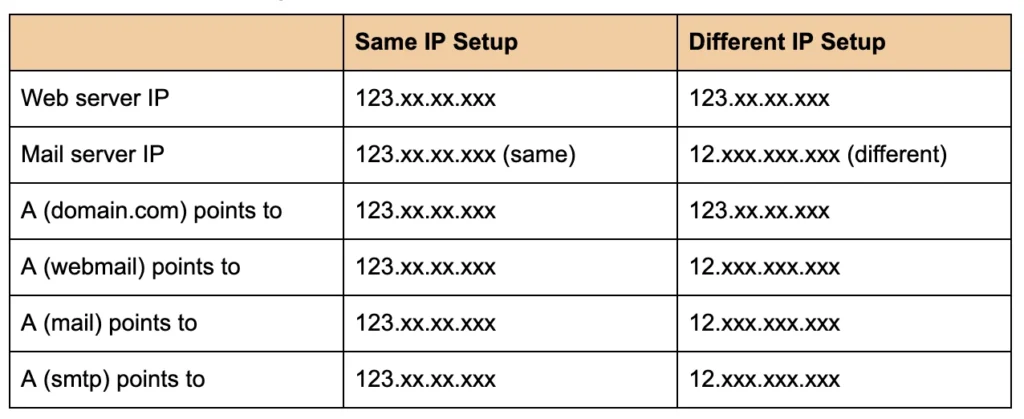
This is common with shared hosting or a single VPS where everything runs together. Your website and your mail server both live on the same server. They share one IP address.
In this case, your webmail access URL typically looks like this:
- https://domain.com/webmail
Or with Roundcube installed as a subfolder:
- https://domain.com/webmail/roundcube
The client goes to the main domain and the webmail is just a path on the same server.
2.1.2 Different IP Address: Web Server and Mail Server on Separate Machines
One Machine
This is common in more advanced setups where the mail server is hosted separately from the web server. Maybe your website is on a cloud hosting platform, but your mail server runs on a dedicated server with a different IP.
In this case, your webmail access URL uses a subdomain pointing to the mail server IP:
- https://webmail.domain.com/roundcube
The client uses the subdomain to reach the mail server directly.
3.0 Why This Setup Matters
Getting the DNS wrong for email is one of the most common mistakes when moving a domain to Cloudflare. If you accidentally proxy the wrong records, email will stop working. Mail protocols like SMTP, IMAP, and POP3 do not work through Cloudflare’s HTTP proxy.
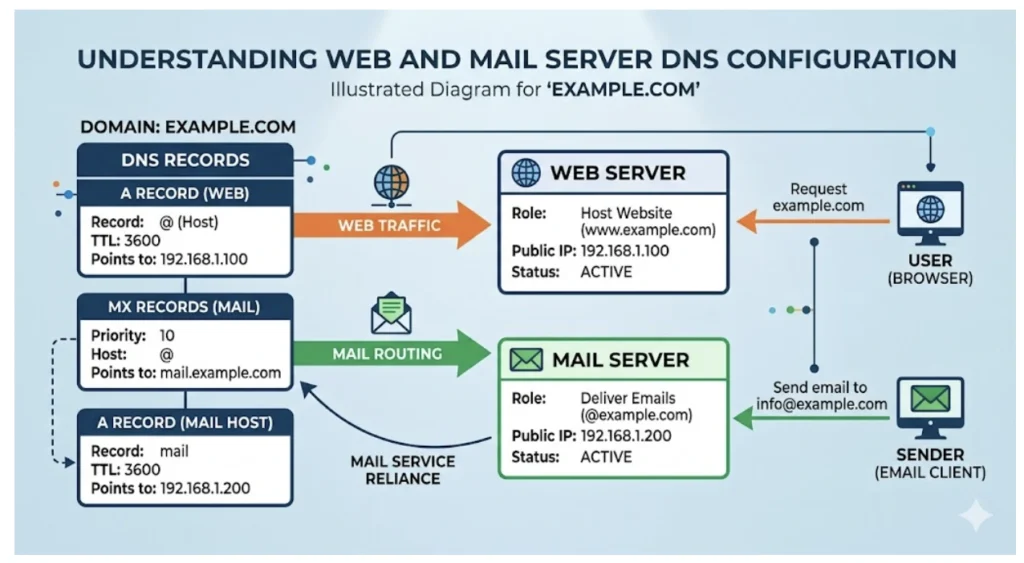
Cloudflare is an HTTP and HTTPS proxy built for web traffic. Understanding this proxy logic is crucial when you attempt to set up webmail in cloudflare safely. When you turn on the orange cloud (Proxied) for a record, Cloudflare sits in front of your server and handles the connection. That works perfectly for websites.
But email servers do not use HTTP. They use their own protocols on different ports. If Cloudflare tries to intercept that traffic, the connection breaks. That is why email-related records must stay as DNS only, which means the grey cloud icon in Cloudflare.
4.0 Cloudflare DNS Records Setup
4.1 Compulsory DNS Records for All Setups
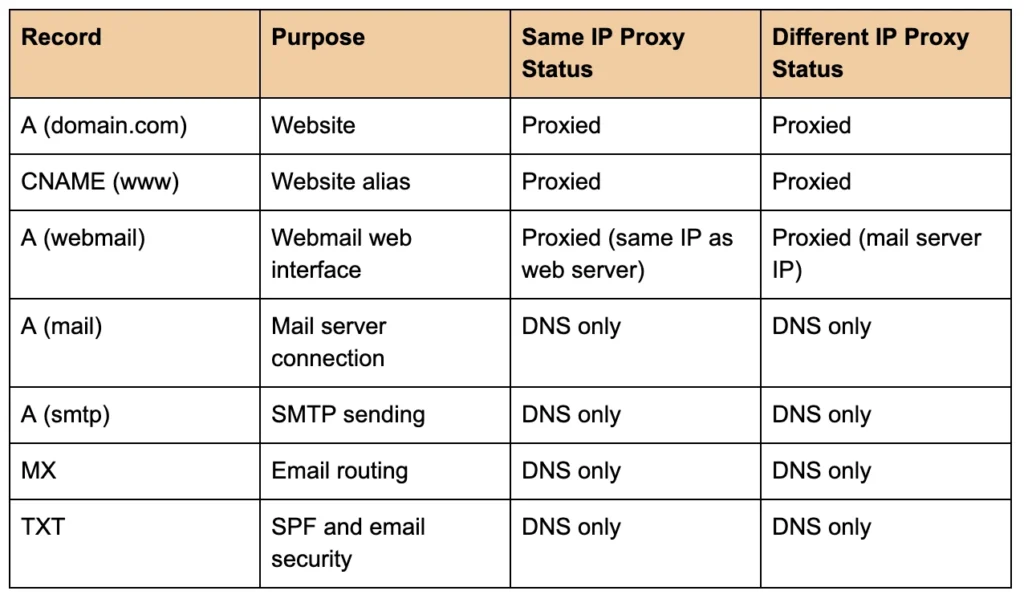
No matter which scenario applies to you, these records are always required when you set up webmail in cloudflare and must always be set to DNS only (grey cloud):
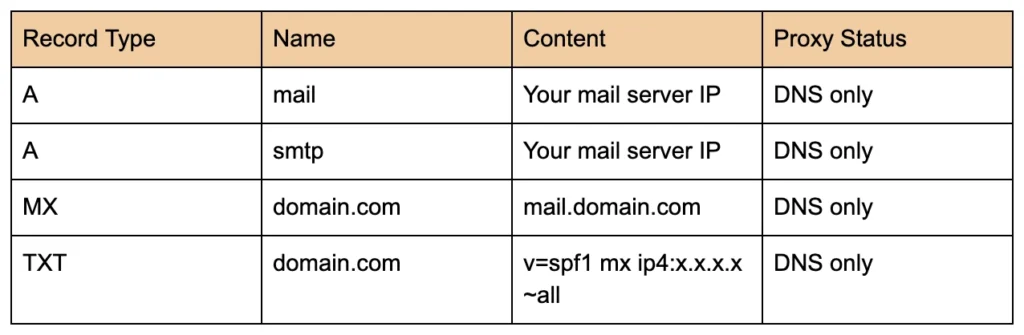
The reason these must be DNS only is straightforward. Your email clients, other mail servers, and email security checks all need to reach your actual server IP directly. If Cloudflare proxies these records, the traffic gets intercepted and email delivery breaks.
If you are new to DNS records and want to understand how domains connect to servers in general, this guide is a good starting point: The Connection Between Domain and Server: A Practical Guide for Website Management
4.2 The Webmail Record
This is the exact step where the two scenarios split depending on how you choose to set up webmail in cloudflare.
4.2.1 Setup for Same IP (Web and Mail on One Server)
If both servers share one IP, your webmail is just a folder on the same web server. You do not need a separate DNS record for webmail in most cases because the main domain already points to the server.
Your DNS setup looks like this:
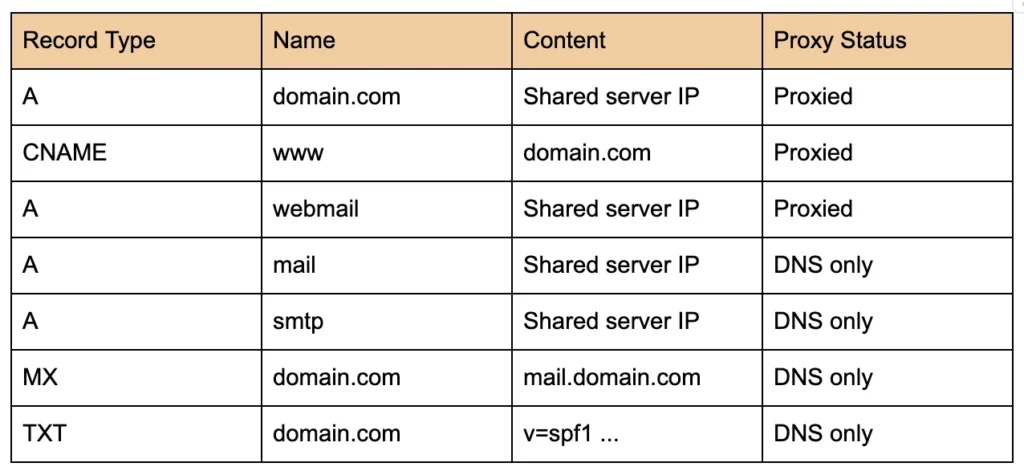
Client access URL:
- https://domain.com/webmail
The main domain record is proxied because it serves web traffic. The mail, smtp, MX, and TXT records stay DNS only because they handle email traffic.
4.2.2 Setup for Different IP (Web and Mail on Separate Servers)
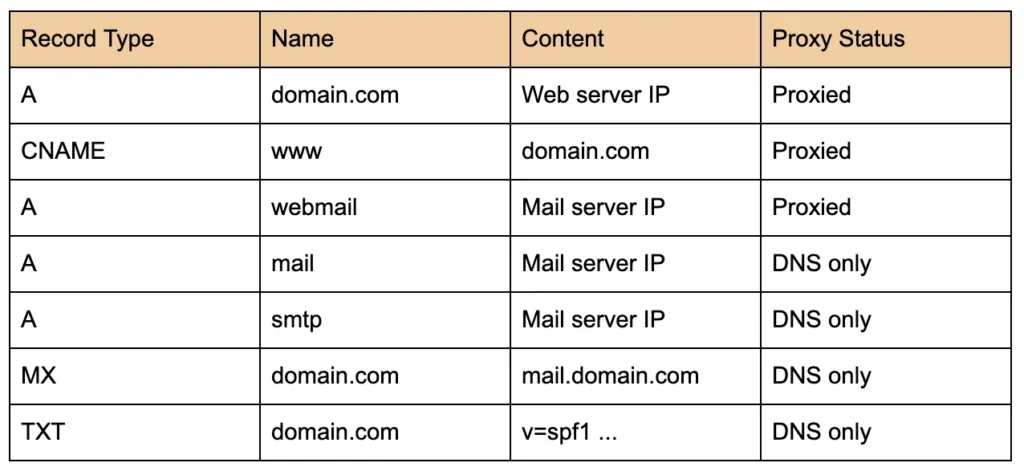
If your mail server has its own IP address separate from the web server, you need a dedicated webmail A record pointing to the mail server IP, and this one can be proxied.
Your DNS setup looks like this:
Client access URL:
- https://domain.com/webmail
When you set up webmail in cloudflare for separate servers, the webmail A record can be proxied because it only serves the web interface for Roundcube over HTTPS. It is web traffic. The actual SMTP and IMAP connections still go through the mail and smtp records, which remain DNS only.
5.0 Summary: Same IP vs Different IP Side by Side
Here is a quick rule to remember whenever you set up webmail in cloudflare and compare these environments:
- Proxied (orange cloud): Only for records that serve web pages through HTTP or HTTPS.
- DNS only (grey cloud): For any record that handles email protocols such as SMTP, IMAP, and POP3.
5.1 DNS Records Comparison
5.2 IP Address Comparison
5.3 Client Access URL Comparison
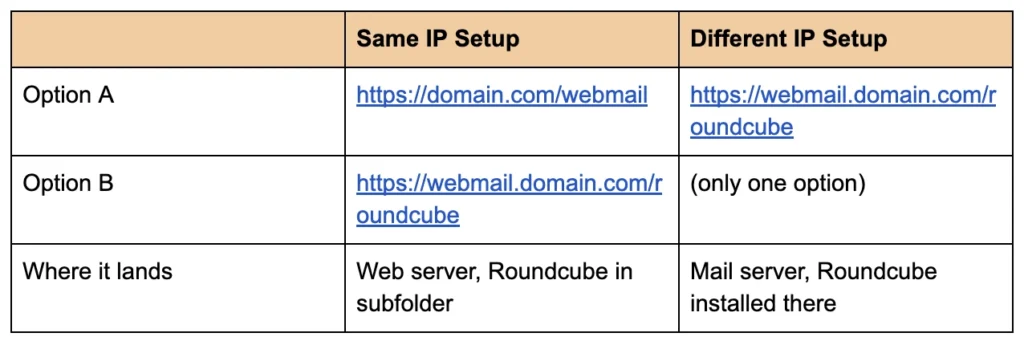
The key difference is only the IP value inside the webmail A record. Everything else in the DNS setup looks the same. The webmail record is the only one that touches email but can still be proxied, because it only serves the Roundcube browser interface over HTTPS. The actual email sending and receiving still uses the mail and smtp records, which bypass Cloudflare entirely.
6.0 Tips and Things to Watch Out For
A few practical reminders to keep in mind when you set up webmail in cloudflare before you save your DNS settings:
Do not proxy the MX record. Cloudflare does not even allow it. MX records are always DNS only by design. But make sure your MX points to a subdomain like mail.domain.com, not directly to the webmail subdomain.
Check your SPF record. Your TXT record for SPF must list the actual IP address of your mail server. Something like:
- v=spf1 a mx ip4:12.xxx.xxx.xxx ~all
This tells other mail servers that your IP is allowed to send email on behalf of your domain. Missing or wrong SPF records cause emails to land in spam.
Do not proxy the smtp or mail records. Even if the IP is the same as your web server, these records must stay grey. Cloudflare does not proxy SMTP traffic on port 25. If you proxy these records, mail clients and servers will try to connect to Cloudflare’s IP instead of your actual server, and they will fail.
Wait for DNS propagation. After making changes, DNS can take a few minutes to a few hours to propagate depending on the TTL settings. If something breaks right after a change, wait and check again before assuming the setup is wrong.
Test your setup. After configuring, send a test email to and from an account on the domain. Also open the webmail URL in a browser to confirm it loads the Roundcube login screen without errors.
7.0 Conclusion
Setting up webmail in Cloudflare does not need to be complicated. The key is understanding that Cloudflare’s proxy is for web traffic only. Email protocols need a direct connection to your server, which is why the mail, smtp, MX, and TXT records must always remain as DNS only.
If your web server and mail server share the same IP, your clients access webmail through domain.com/webmail. If they are on different IPs, you set up a dedicated webmail subdomain and your clients use webmail.domain.com/roundcube.
The webmail A record is the one record in an email setup that can safely be proxied, because it only delivers a web page, not email protocol traffic.
When you properly set up webmail in cloudflare, your mail setup will run smoothly without random failures or confusing errors.
8.0 References
- Cloudflare Documentation: How to set up email records in Cloudflare DNS including A, MX, and TXT records.
https://developers.cloudflare.com/dns/manage-dns-records/how-to/email-records/ - Cloudflare Documentation: Troubleshooting email issues including why mail fails when records are proxied.
https://developers.cloudflare.com/dns/troubleshooting/email-issues/ - Cloudflare Documentation: Proxy status explained, including when to use DNS only vs proxied for different record types.
https://developers.cloudflare.com/dns/proxy-status/ - Cloudflare Documentation: Use cases for proxied and DNS only records including mail server scenarios.
https://developers.cloudflare.com/dns/proxy-status/use-cases/ - DCHost Blog: Setting up Cloudflare DNS, SSL, and email records the right way with safe email DNS patterns.
https://www.dchost.com/blog/en/setting-up-cloudflare-dns-ssl-and-email-records-the-right-way/ - Cloudstick Knowledge Base: How to install and configure Roundcube webmail with Cloudflare DNS.
https://cloudstick.io/knowledgebase/configure-mail/how-to-install-round-cube
9.0 Ready to Elevate Your Website?
Get a professional website built by Latitude Innovation.
WhatsApp Us: https://wa.me/60104348799/
Our Services: https://latitudeinnovation.com.my/web-design-service/