Why Need To Add Google Tag Manager To A WordPress Website
There are several reasons :
To works perfectly with Google Analytics
Have total control of a website
To speed up the website loading website
How To Add Google Tag Manager To WordPress Website
Below Are The Following Steps :
Step 1 : Search “Google Tag Manager” and click the “Sign In button”
Step 2 : Click on “Create Account” button
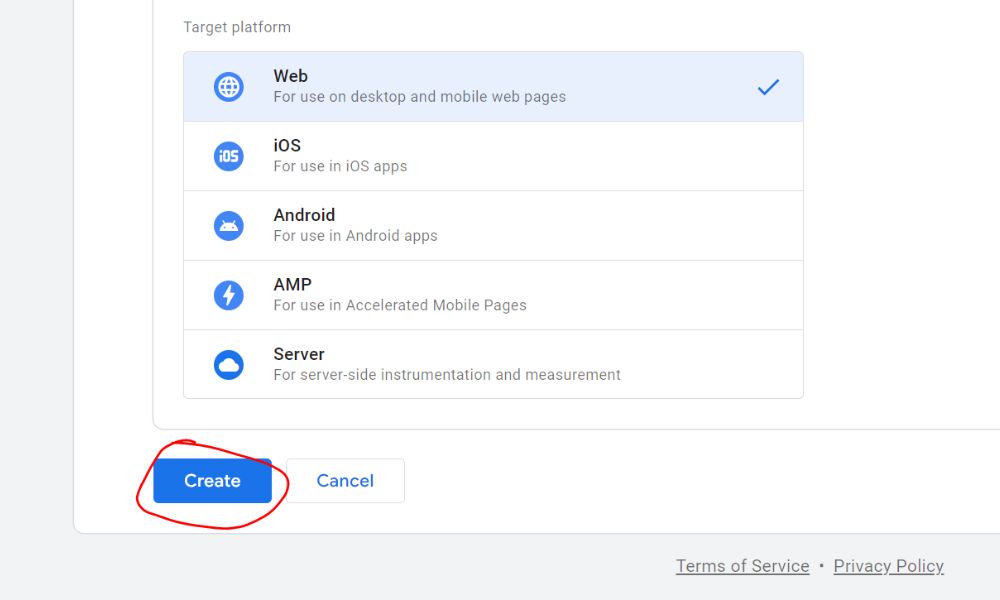
Step 3 : Fill all the fields Account Setup i. Account Name : [Company Name] ii. Country : [Malaysia] Container Setup i. Container name : [domain.com.my] ii. Target platform : tick for the “Web”
Step 4 : Click on “Create” button
Step 5 : Click “tick” at the checkbox below and click “Yes” button
Step 6 : Copy the <head> and <body> code at Notepad
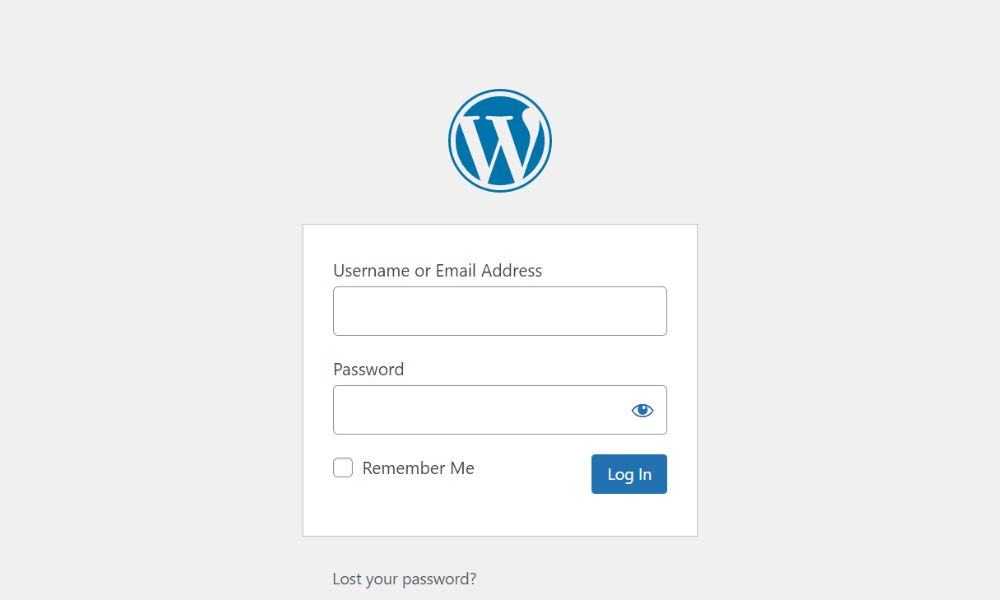
Step 7 : Login to WordPress Dashboard [https://website.com.my/wp-admin]
Step 8 : Click on “Plugins” and then click on the “Add New” button
Step 9 : Type “Insert Header and Footers by WPBeginner” and click on “Install Now” button
Step 10 : “ Click on “Activate” button
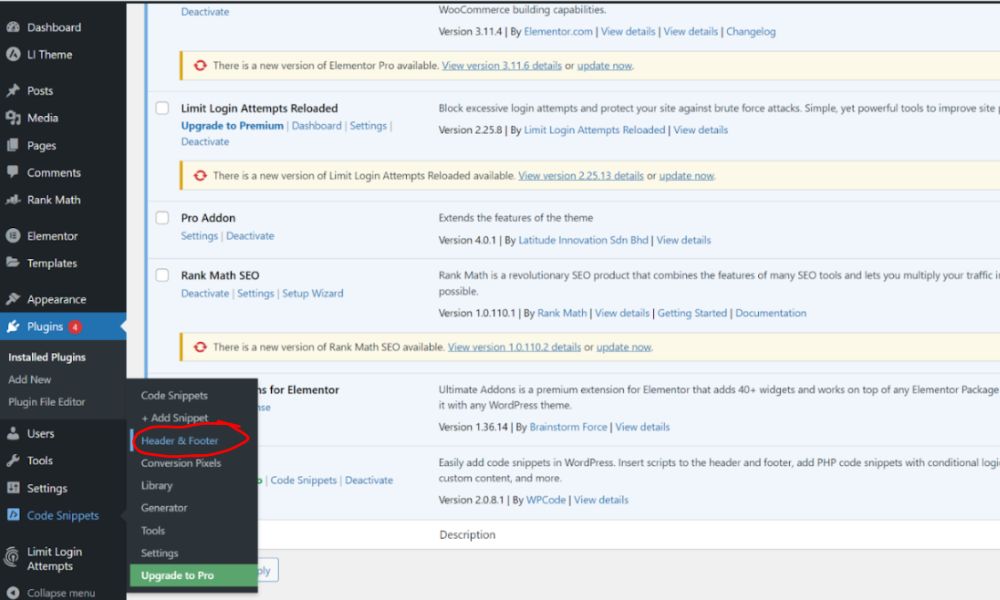
Step 11 : Click on “Code Snippets” and click on the “Header & Footer”
Step 12 : Paste the codes for <head> and <body> by copying from Google Tag Manager. Once you are done, click on the “Save Changes” button.
How To Add Google Tag Manager To WordPress Website
Why Need To Add Google Tag Manager To A WordPress Website
There are several reasons :
To works perfectly with Google Analytics
Have total control of a website
To speed up the website loading website
How To Add Google Tag Manager To WordPress Website
Below Are The Following Steps :
Step 1 : Search “Google Tag Manager” and click the “Sign In button”
Step 2 : Click on “Create Account” button
Step 3 : Fill all the fields Account Setup i. Account Name : [Company Name] ii. Country : [Malaysia] Container Setup i. Container name : [domain.com.my] ii. Target platform : tick for the “Web”
Step 4 : Click on “Create” button
Step 5 : Click “tick” at the checkbox below and click “Yes” button
Step 6 : Copy the <head> and <body> code at Notepad
Step 7 : Login to WordPress Dashboard [https://website.com.my/wp-admin]
Step 8 : Click on “Plugins” and then click on the “Add New” button
Step 9 : Type “Insert Header and Footers by WPBeginner” and click on “Install Now” button
Step 10 : “ Click on “Activate” button
Step 11 : Click on “Code Snippets” and click on the “Header & Footer”
Step 12 : Paste the codes for <head> and <body> by copying from Google Tag Manager. Once you are done, click on the “Save Changes” button.
Why Need To Add Google Tag Manager To A WordPress Website
There are several reasons :
To works perfectly with Google Analytics
Have total control of a website
To speed up the website loading website
How To Add Google Tag Manager To WordPress Website
Below Are The Following Steps :
Step 1 : Search “Google Tag Manager” and click the “Sign In button”
Step 2 : Click on “Create Account” button
Step 3 : Fill all the fields Account Setup i. Account Name : [Company Name] ii. Country : [Malaysia] Container Setup i. Container name : [domain.com.my] ii. Target platform : tick for the “Web”
Step 4 : Click on “Create” button
Step 5 : Click “tick” at the checkbox below and click “Yes” button
Step 6 : Copy the <head> and <body> code at Notepad
Step 7 : Login to WordPress Dashboard [https://website.com.my/wp-admin]
Step 8 : Click on “Plugins” and then click on the “Add New” button
Step 9 : Type “Insert Header and Footers by WPBeginner” and click on “Install Now” button
Step 10 : “ Click on “Activate” button
Step 11 : Click on “Code Snippets” and click on the “Header & Footer”
Step 12 : Paste the codes for <head> and <body> by copying from Google Tag Manager. Once you are done, click on the “Save Changes” button.