

My Guide to Troubleshooting Website Errors, From Detection to Solution
When I am managing a website, there is nothing more stressful than seeing a blank page or a cryptic error message. Over time, I have learned that these numbers aren’t just random; they are a specific language the server uses to tell me exactly what is breaking. To fix a site efficiently, I have to know how to listen to what the browser is saying.
How I Detect Errors Behind the Scenes
I use the built-in tools in my browser to see exactly what is loading or failing to load in real-time.
To do this, I right-click anywhere on my page and select Inspect, then I navigate to the Console tab. This is my first line of defense. If a Javascript file fails or a resource is blocked, it shows up here in red.
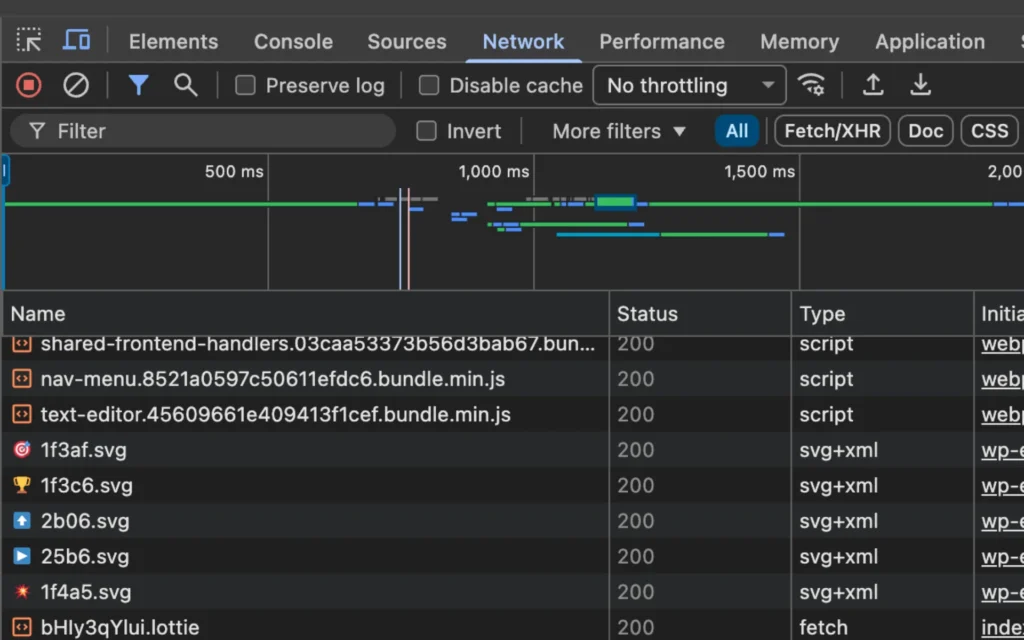
If the Console doesn’t give me enough detail, I move to the Network tab. I refresh the page while this tab is open, and it shows me every single request my website makes. I look at the “Status” column; any number that isn’t in the 200 range usually points to the root of my problem.
Understanding the Status Codes
I have categorized the most common errors I encounter into this reference table. This helps me quickly identify whether the problem is something I did on the front end or if the server itself is having a meltdown.
Error Code | Name | Where It Comes From | My Typical Solution |
400 | Bad Request | The browser sent data the server can’t understand. | I check for malformed syntax or corrupted browser cookies. |
401 | Unauthorized | The page requires a login that hasn’t been provided. | I verify my login credentials or check my auth headers. |
403 | Forbidden | The server understands the request but refuses to fulfill it. | I check folder permissions (755) or my .htaccess file. |
404 | Not Found | The server can’t find the requested resource. | I fix broken links or set up a 301 redirect for moved pages. |
422 | Unprocessable Entity | The data format is correct, but the contents are invalid. | I check my form validation logic and database constraints. |
429 | Too Many Requests | The user has sent too many requests in a given amount of time. | I implement rate limiting or check if a bot is scraping my site. |
500 | Internal Server Error | A generic “catch-all” error for server-side crashes. | I check the server’s error logs or disable recent plugins. |
502 | Bad Gateway | One server received an invalid response from another. | I restart my proxy server or check the backend status. |
503 | Service Unavailable | The server is temporarily overloaded or down for maintenance. | I wait for traffic to drop or upgrade my hosting resources. |
504 | Gateway Timeout | The upstream server took too long to respond. | I optimize slow database queries or increase timeout limits. |
Status Codes Developers Should Focus On
From experience, not all errors are equally important. These are the ones I pay the most attention to:
Critical (Fix Immediately)
- 500, 502, 503, 504 → Server is broken or unstable
- Impact: Website may be completely down
Important (Affects Functionality / UX)
- 404 → Broken pages or missing assets
- 403 → Access issues
- 422 → Forms not working properly
Warning (Performance / Security)
- 429 → Too many requests (possible bot or API issue)
- 400 / 401 → Usually configuration or request issues
My Step-by-Step Fix Process
Whenever I encounter a new error, I follow a very specific workflow to get the site back online.
First, I look at the 400-series codes. These are “Client Errors.” If I see these, I know the issue is likely something I can fix in my code, my URL structure, or my browser settings. I start by clearing my cache and checking my file paths.
Second, I look at the 500-series codes. These are “Server Errors.” These are trickier because they happen under the hood. When I see a 500 or 503, I immediately log into my hosting provider’s dashboard and check the Error Log file. This file records the exact line of code that caused the crash.
Finally, I always re-test using Inspect to confirm the issue is fully resolved and no new errors appear.
Final Thoughts
When a website breaks, I rely on the Inspect tool to check the code and trace the issue. It helps me troubleshoot problems faster instead of relying on trial and error.
The key is simple:
Don’t panic – read the error, understand it, and let the browser guide you to the fix.