
How to collect targeted email address from Google?


Step 1

Go to Google.com and click setting at the right bottom of the screen.

Step 2

Set the result per page to maximum which is 100 and click save.

Step 3

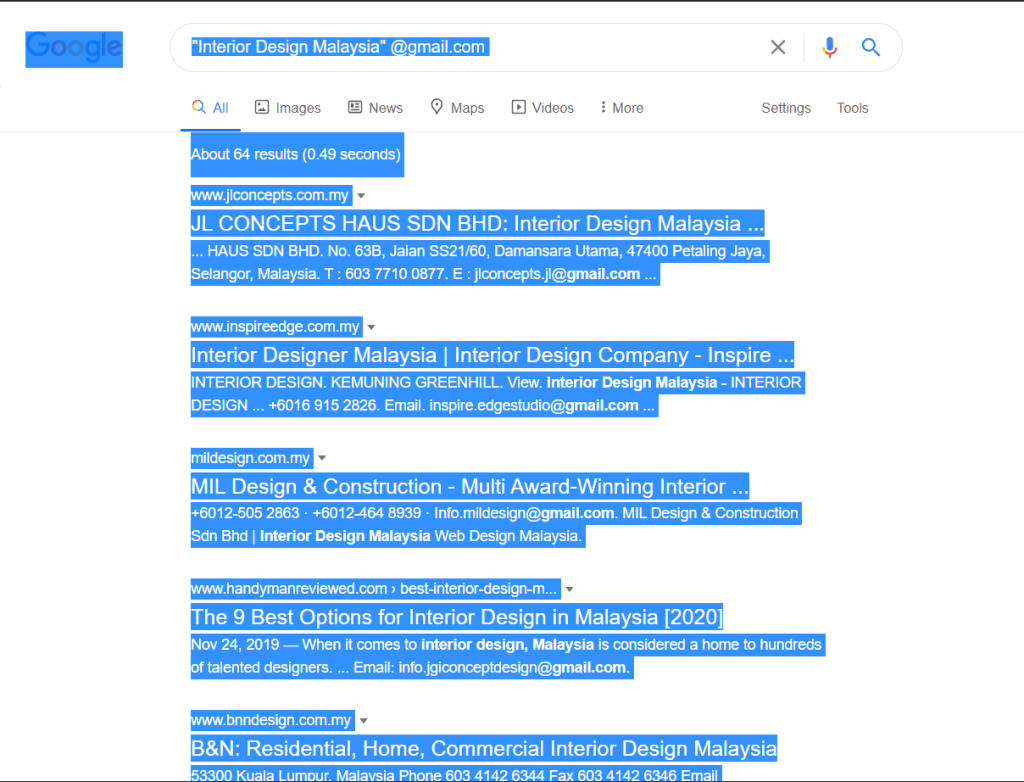
Insert your target email address in the search bar with open-close bracketing comma and put “@gmail.com” at the back.

Step 4

Open a new tab and search email extractor lite. (Note: Here is what I used -> http://eel.surf7.net.my/)

Step 5

Back to the search result tab. Highlight the whole page result (CTRL + A) and copy (CTRL + C).
Step 6

Paste it in the column Input Window and click “Extract”.

Step 7

The result will be show in the next column and will show how many email detected in the result.

How To Collect Targeted Email Address From Google?

How to collect targeted email address from Google?


Step 1

Go to Google.com and click setting at the right bottom of the screen.

Step 2

Set the result per page to maximum which is 100 and click save.

Step 3

Insert your target email address in the search bar with open-close bracketing comma and put “@gmail.com” at the back.

Step 4

Open a new tab and search email extractor lite. (Note: Here is what I used -> http://eel.surf7.net.my/)

Step 5

Back to the search result tab. Highlight the whole page result (CTRL + A) and copy (CTRL + C).

Step 6

Paste it in the column Input Window and click “Extract”.

Step 7

The result will be show in the next column and will show how many email detected in the result.

Table of Contents

How to collect targeted email address from Google?


Step 1

Go to Google.com and click setting at the right bottom of the screen.

Step 2

Set the result per page to maximum which is 100 and click save.

Step 3

Insert your target email address in the search bar with open-close bracketing comma and put “@gmail.com” at the back.

Step 4

Open a new tab and search email extractor lite. (Note: Here is what I used -> http://eel.surf7.net.my/)

Step 5

Back to the search result tab. Highlight the whole page result (CTRL + A) and copy (CTRL + C).

Step 6

Paste it in the column Input Window and click “Extract”.

Step 7

The result will be show in the next column and will show how many email detected in the result.

collect targeted email address
Scroll to Top