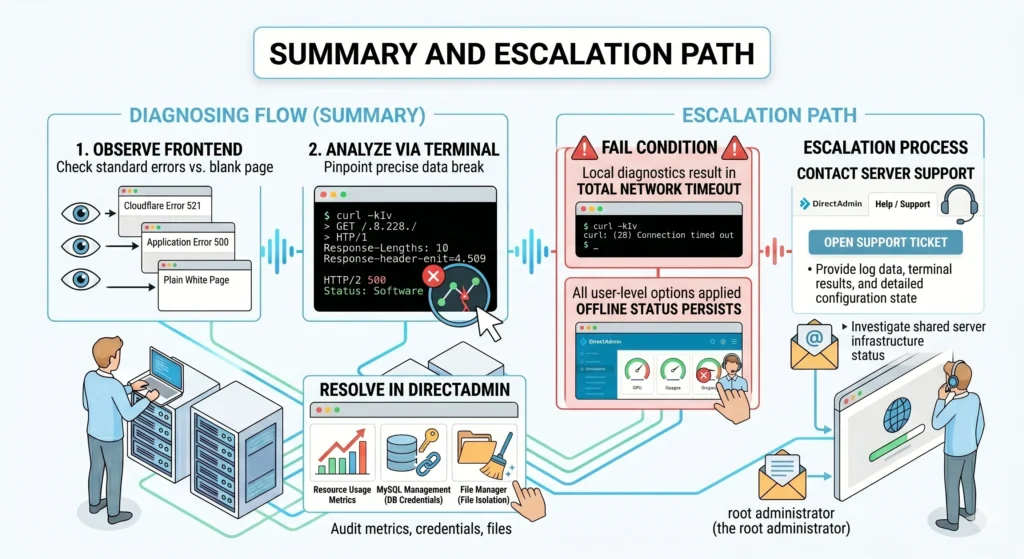
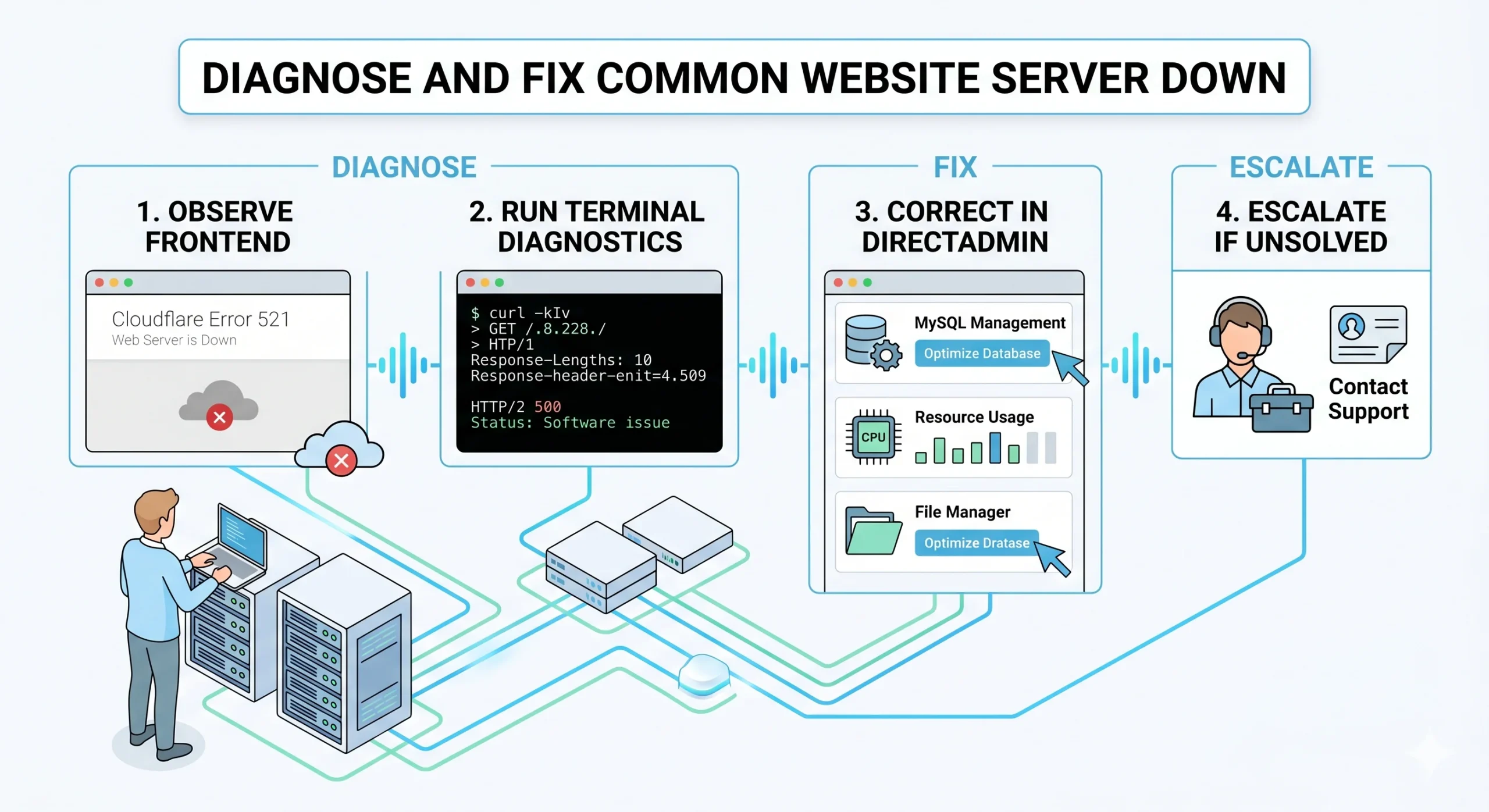
Here is the exact visual map of what you will see on the browser screen when a specific server downtime occurs.
1. Web Server Down Screen (Error 521 / 522)
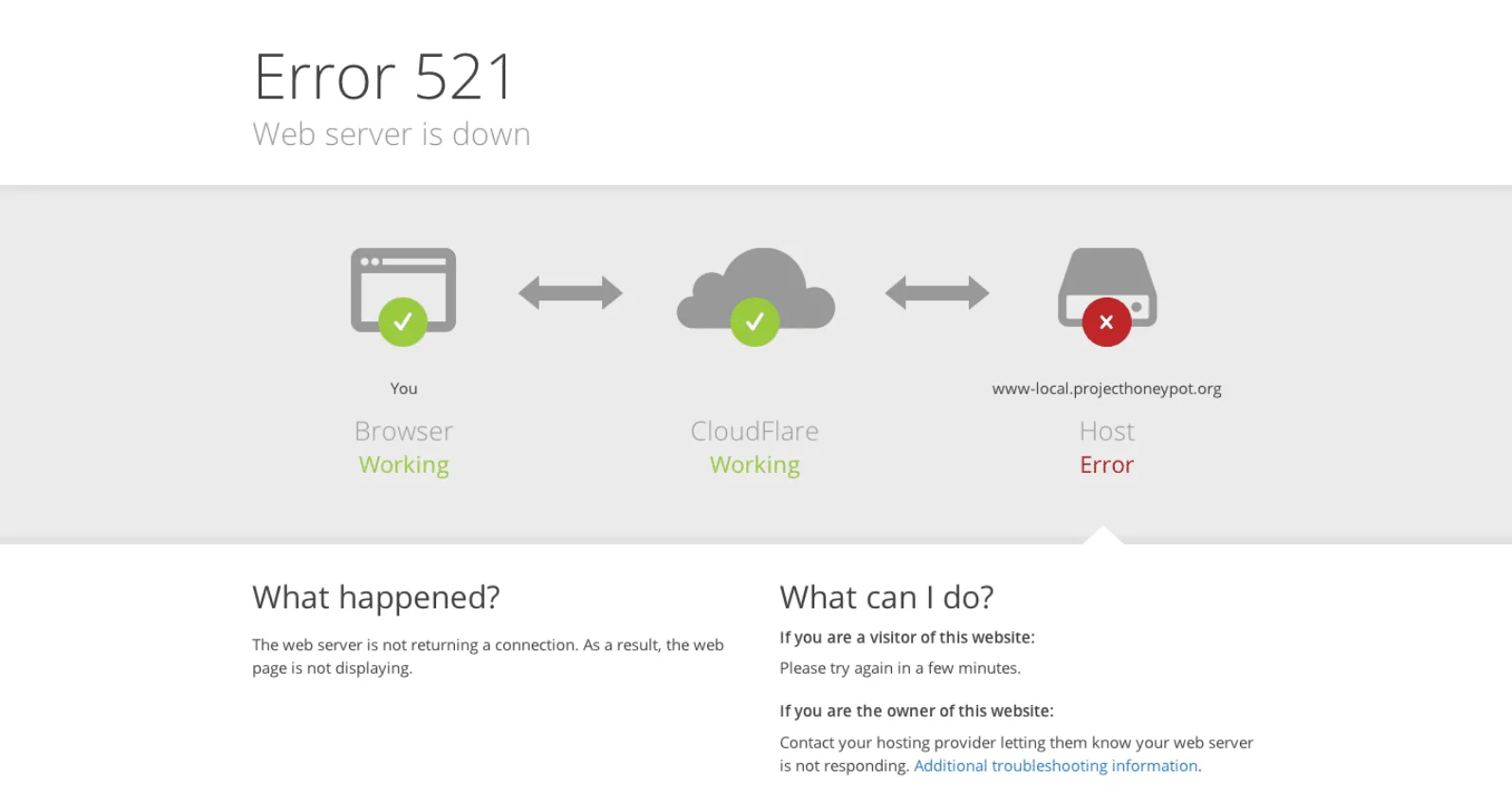
This screen shows up when the physical server hardware is running, but the system software responsible for delivering web pages has stopped working. Cloudflare remains online but cannot connect to the backend destination.
This error means the front gate of the server is locked. It is always caused by one of these things:
- Web Software Crash: The web server program inside the hosting account has crashed or frozen due to high traffic or configuration conflicts.
- Server Firewall Block: The firewall on the raraxuan server mistakenly flagged Cloudflare’s connection IPs as a threat and blocked them.
- Hosting Account Suspension: The hosting provider has temporarily suspended the specific account due to unpaid bills or resource violations, turning off web access.
2. Gateway Issue Screens (Error 502 / 504)
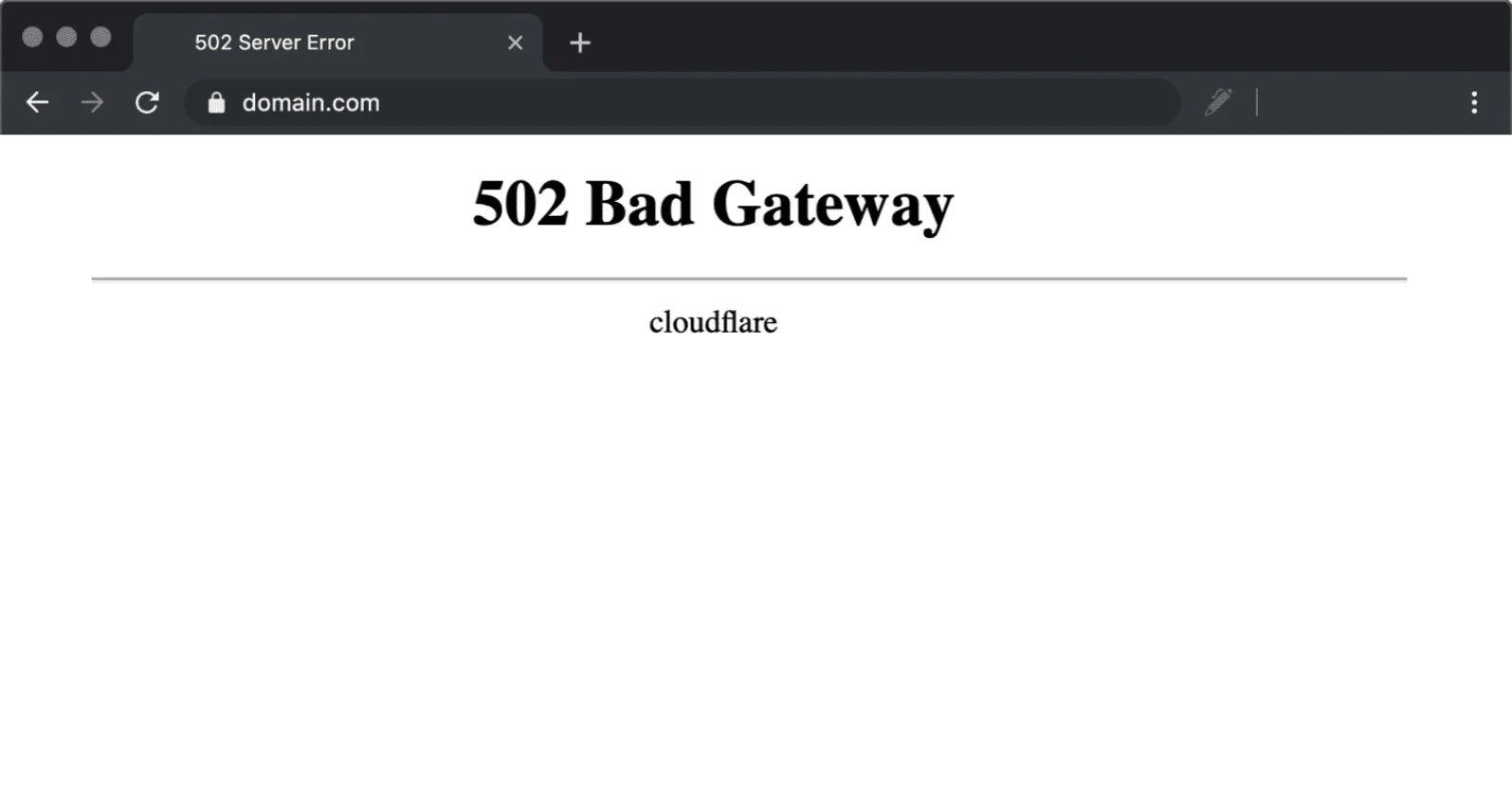
These errors display when Cloudflare successfully reaches the server, but the server either sends back invalid information or takes too long to process the request.
This error means the communication link between the proxy and the server is broken mid-way. It is always caused by one of these things:
- Frozen Backend Script: A script or task on the website is stuck in an endless loop, forcing Cloudflare to time out while waiting for a response (Error 504).
- Misconfigured Proxy Rules: The internal connection settings between Cloudflare and DirectAdmin are mismatched, making the data unreadable (Error 502).
- Server Process Limit Reached: The hosting account has maxed out its simultaneous connection slots, causing the server to reject new incoming data requests.
3. Database Connection Failure Screen
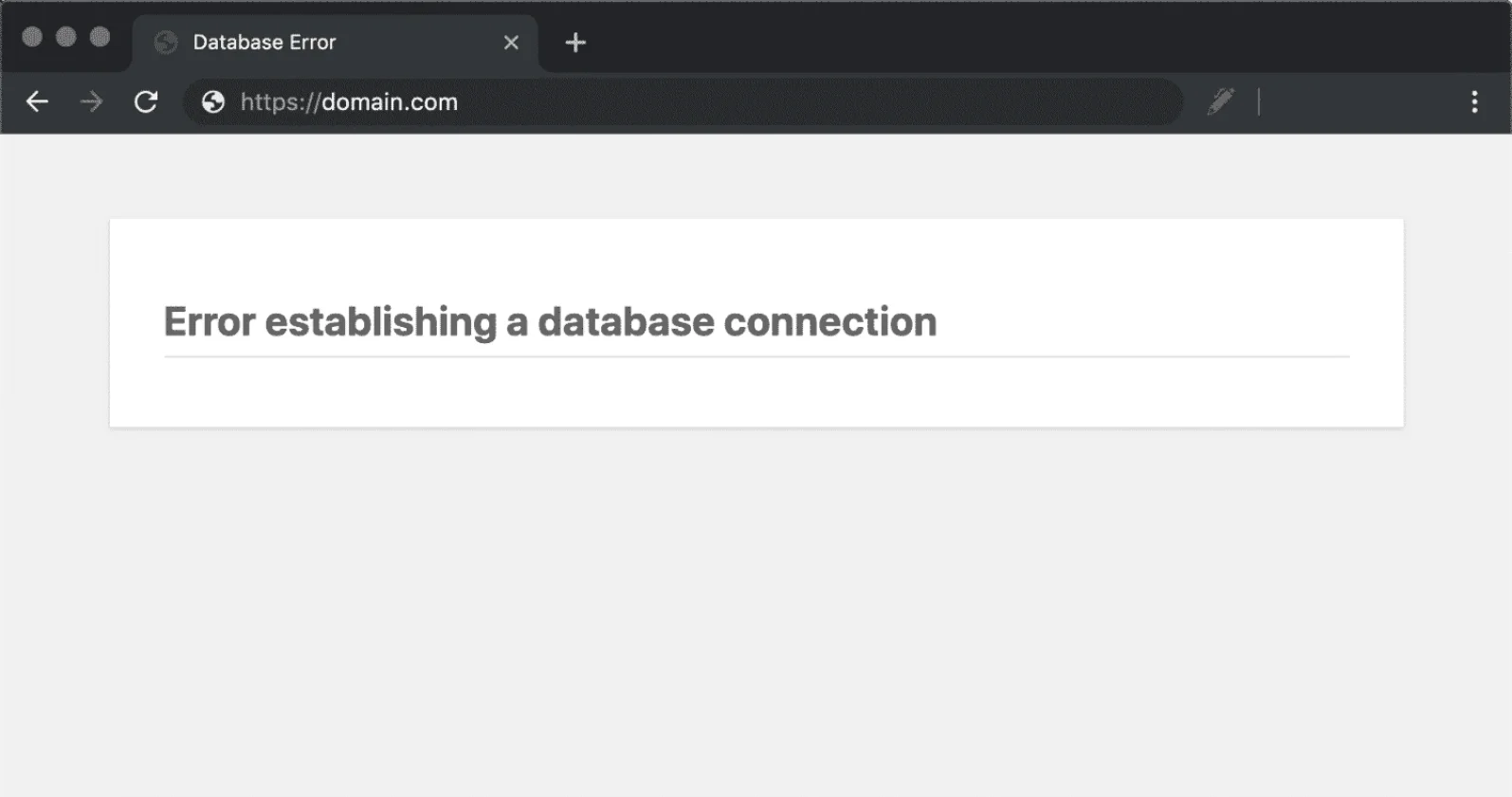
When this happens, your website’s front-end design completely drops out. The browser screen goes entirely white and prints a single sentence:
This error means your website is completely locked out of its data. It is always caused by one of these three things:
- Database Server Crashed: The background database engine on your raraxuan (sg02) server ran out of memory and fell asleep, so it cannot respond.
- Wrong Username or Password: You recently changed your database password inside DirectAdmin, but you forgot to update the new password inside your website’s configuration file (like wp-config.php).
Linked to the Wrong Database: The database name typed in your website’s configuration file is misspelled, renamed, or was accidentally deleted from DirectAdmin.
4. Overloaded or Application Bug Screens (Error 500 / 503)
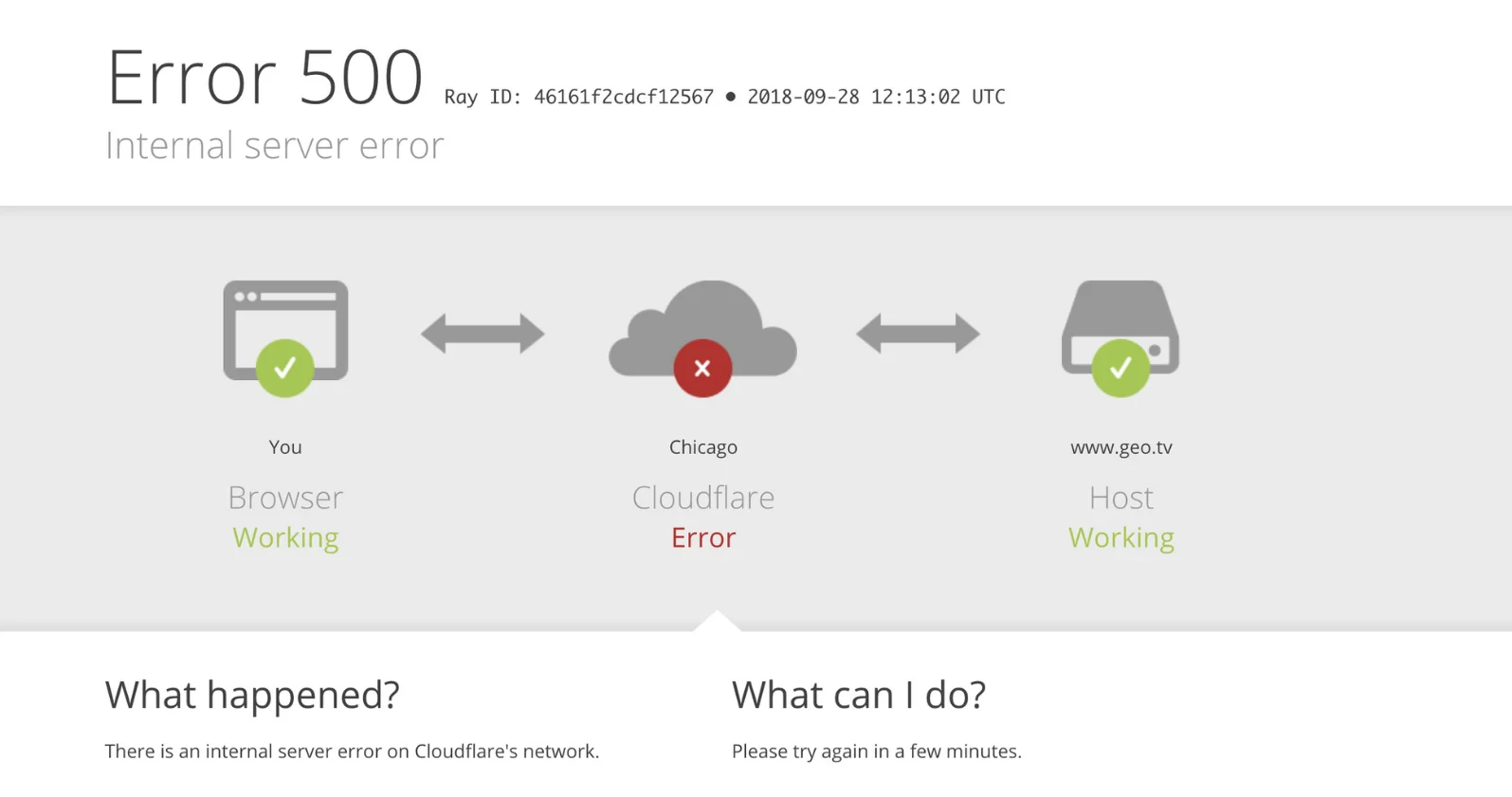
These screens display when the server is online and running, but a severe technical failure inside the website code or server limits prevents the page from loading.
This error means the server is alive, but it cannot safely execute the requested action. It is always caused by one of these things:
- Bad Plugin or Code Conflict: A newly installed extension, theme update, or broken code script caused a fatal crash in the website system (Error 500).
- Account Resource Starvation: The website has completely exhausted the allocated RAM or CPU limits assigned to the hosting package (Error 503).
- Corrupted .htaccess File: The hidden server routing file inside the file manager contains a typo or invalid rule, breaking the website path structure.
Type A Fixes: Web Server Down (Error 521 / 522)
Since standard user accounts do not have access to a root system monitor to restart software daemons, these user-level solutions can resolve account blocks:
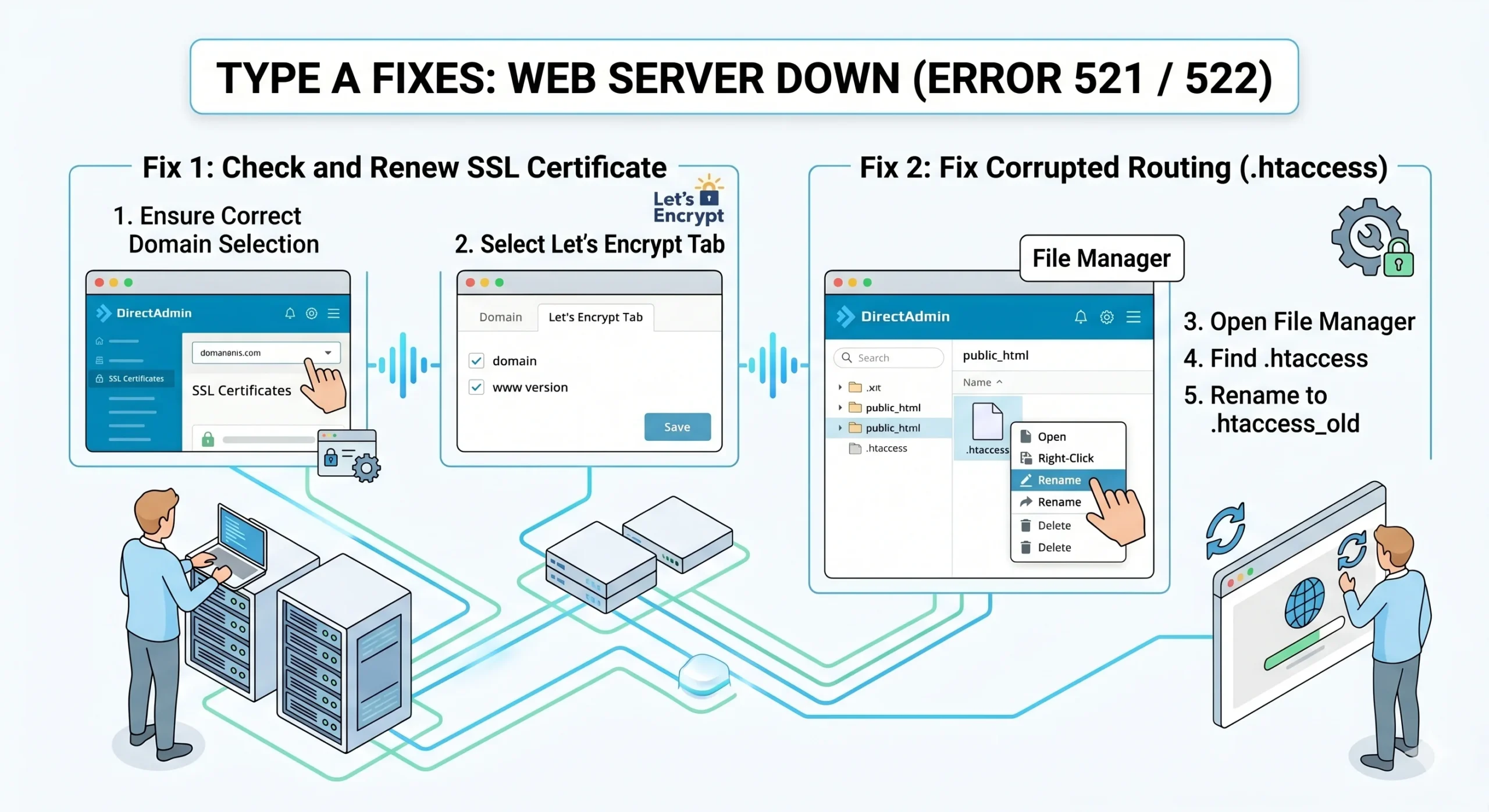
Fix 1: Check and Renew an Expired SSL Certificate
- If Cloudflare expects an encrypted link but the hosting account’s security certificate has expired, the connection drops.
- In DirectAdmin, search for SSL Certificates.
- Ensure the correct domain name is selected at the top right.
- Select the tab for Let’s Encrypt.
- Check the box for the domain and its www version, then click Save. This forces a fresh certificate to generate.
Fix 2: Fix a Corrupted Server Routing File (.htaccess)
- A broken rule or typo inside the server configuration file can block all connections.
- In DirectAdmin, open File Manager and enter the public_html folder.
- Look for the hidden file named .htaccess.
- Right-click it, select Rename, and change it to .htaccess_old (this completely safely disables it).
- Try reloading the website. If it works, the code inside that file was breaking the server communication link.
Type B Fixes: Database Down (Connection Error)
If the server-wide database engine is running but the website still displays a database connection error, the username, password, or mapping configuration is wrong inside DirectAdmin.
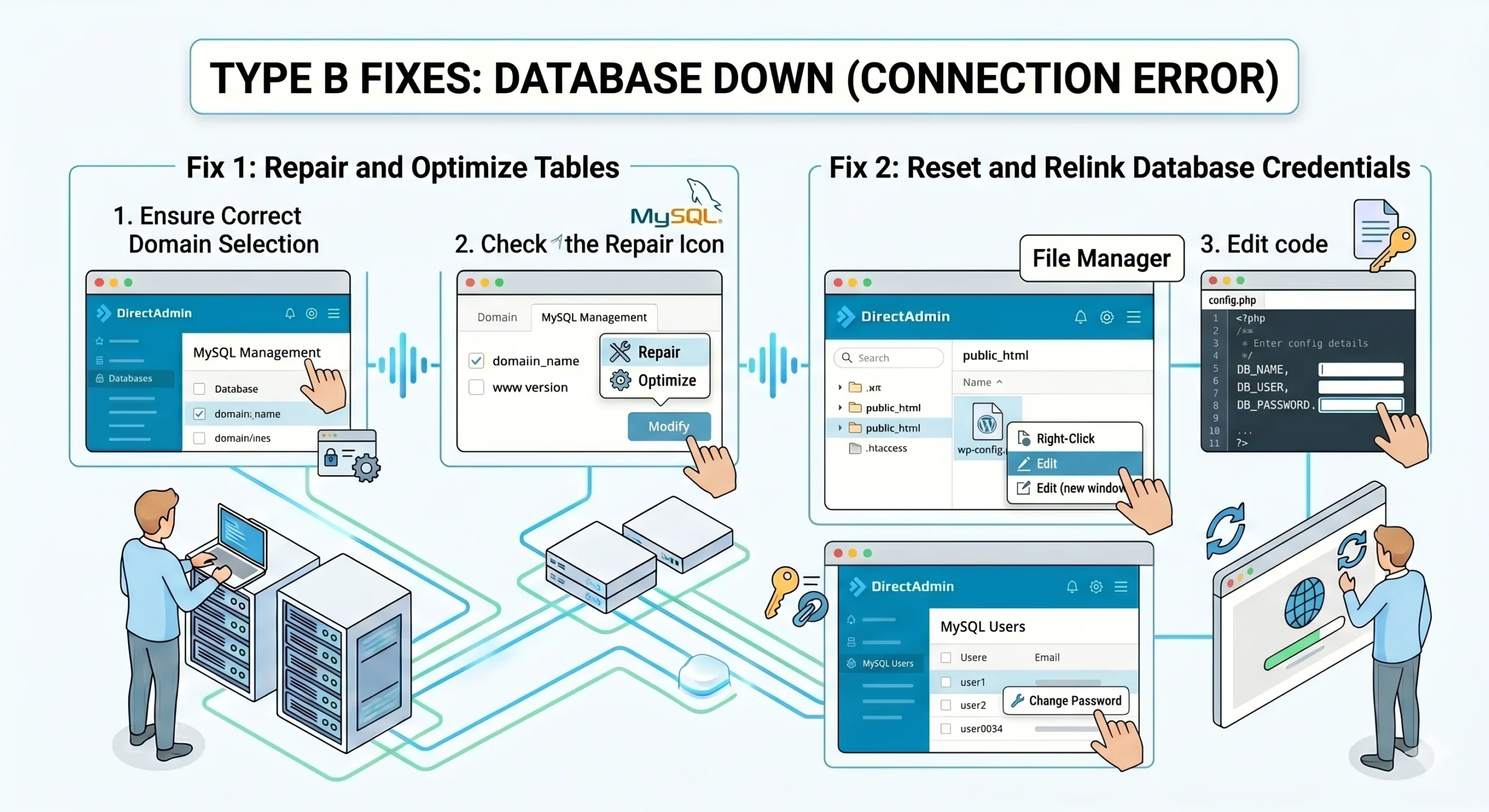
Fix 1: Repair and Optimize the Database Tables
- Sometimes the storage tables get corrupted after a high traffic surge or sudden crash.
- Go to DirectAdmin and open MySQL Management.
- Check the box next to the broken database.
- Click the Modify button and choose Repair or Optimize.
Fix 2: Reset and Relink Database Credentials
- If the code credentials do not match DirectAdmin, access is denied.
- Go to DirectAdmin ➔ MySQL Management and click on the specific database name.
- Look under the Users section to find the exact database username.
- Click on the username and choose Change Password to set a completely fresh, known password.
- Open DirectAdmin File Manager, navigate into public_html, and edit the main configuration file (like wp-config.php for WordPress).
- Find the rows for Database Name (DB_NAME), User (DB_USER), and Password (DB_PASSWORD). Update the text inside the quotation marks to match your DirectAdmin details exactly, then save the file.
Type C Fixes: Code, Resource, or Gateway Breakdowns (Error 500 / 502 / 503 / 504)
These errors mean the server is running, but it has completely stalled out due to faulty application code or hitting hosting resource limits.
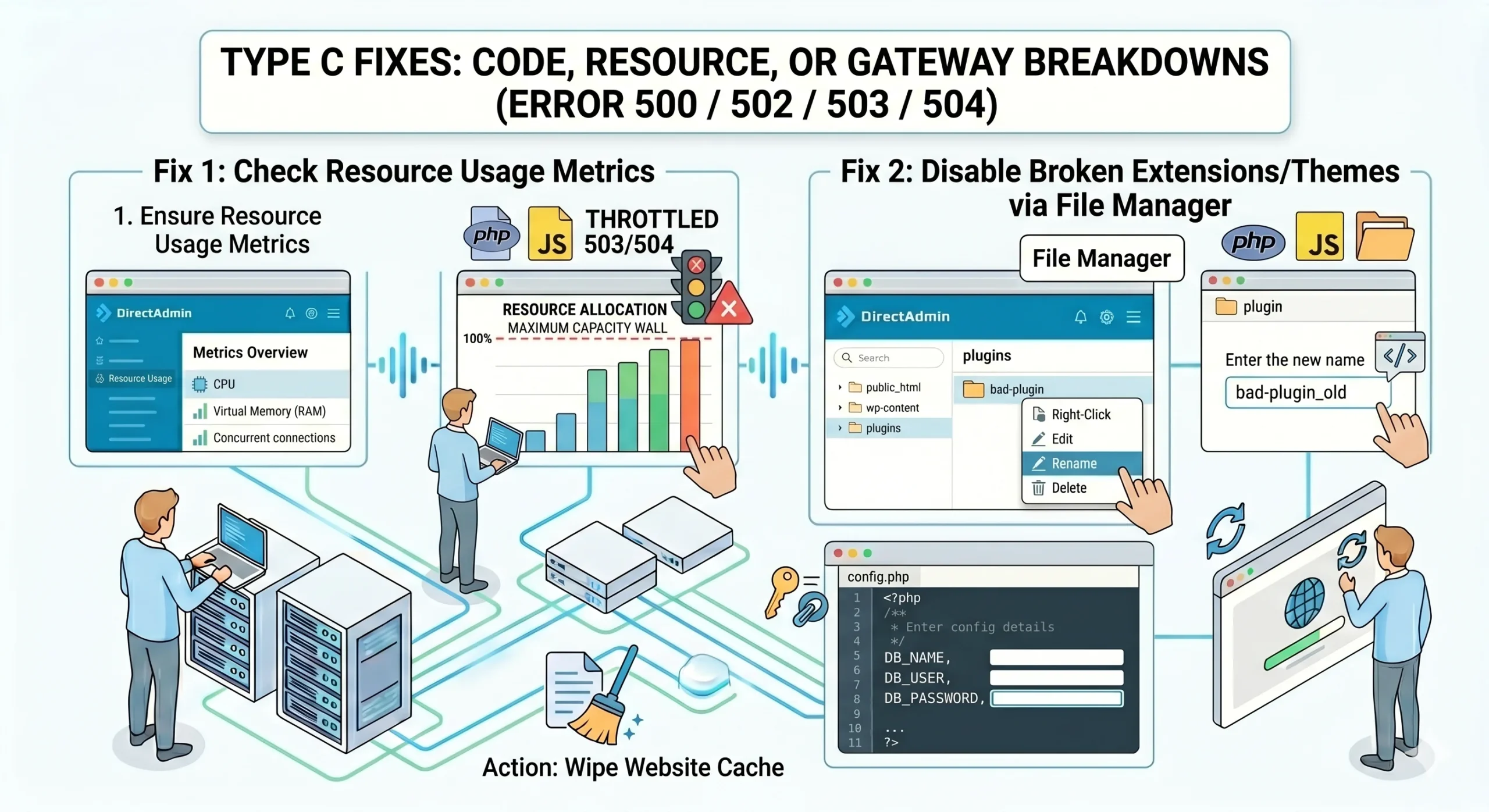
Fix 1: Check Resource Usage Metrics
- Look for Resource Usage or Metrics on the DirectAdmin main page.
- Check if the CPU, Virtual Memory (RAM), or concurrent connection meters are hitting their 100% maximum capacity limit walls.
- If they are maxed out, the account is throttled. Go to File Manager ➔ public_html, locate the website cache folder, and wipe its contents to lower the weight on the account container.
Fix 2: Disable Broken Extensions or Themes via File Manager
- If an updated plugin or theme contains a severe code bug, it will crash the application layer instantly.
- In DirectAdmin, open File Manager and go to public_html.
- Navigate into the application content directory (for example, wp-content/plugins for WordPress).
- Right-click the folder of the most recently updated plugin or theme and Rename it by adding _old to the end of its name. This instantly cuts off the broken code script and lets the website login panel load up normally.