

What to Do If Gmail No Longer Supports POP3 for Your Company Email
1.0 Introduction
This report addresses the missing older messages for admin@yourdomain.com. The conversation records that Gmail collected this mailbox using POP3 and that older messages were no longer visible in SquirrelMail. The recorded explanation is that Gmail downloaded those messages and removed them from the mail server. The messages are expected to remain in the Gmail account, but their presence and the corrective steps must be checked before restoration is considered complete.
1.1 Purpose
To summarize the reported cause, prevent further POP3 removal, and provide a controlled Outlook and IMAP process for copying older messages back to the company mail server. This report separates conversation findings from actions that still require verification.
2.0 Problem
The reported symptom was that webmail/SquirrelMail showed only one email in the inbox while older messages were expected. Because webmail displays messages stored on the mail server, messages downloaded and removed by a mail client would not appear there. The conversation also describes an earlier connection error as temporary and says Gmail was connecting normally afterward. That status was not independently checked for this report.
3.0 Root Cause
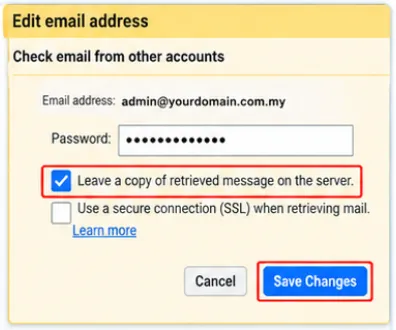
According to the troubleshooting conversation, Gmail (yourusername@gmail.com) was configured to retrieve admin@yourdomain.com.my by POP3. The option “Leave a copy of retrieved message on the server” was not selected. POP3 retrieval therefore removed retrieved messages from the server, leaving webmail with only the message still stored there. The conversation states that the older messages were downloaded into Gmail rather than lost. Confirm this by searching Gmail, including All Mail, before attempting any restoration. The conversation does not establish a verified message count or prove that every expected message is present.
4.0 Solution and Step-by-Step
4.1 Prevent Further Removal in Gmail
- Sign in to Gmail as yourusername@gmail.com and open Settings > See all settings > Accounts and Import.
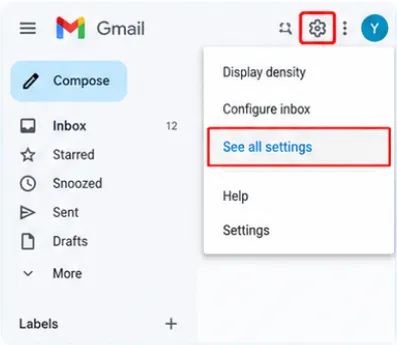
- Under “Check email from other accounts,” locate admin@yourdomain.com.my and select “edit info.” Do not use the separate “Send mail as” settings.
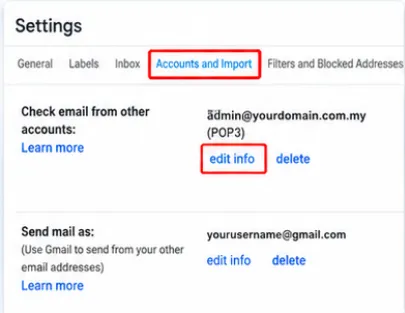
3. Re-enter the mailbox password if Gmail requests it. Tick “Leave a copy of retrieved message on the server.”
- Optionally enable “Label incoming messages.” Keep “Archive incoming messages (Skip the Inbox)” unticked if new messages should appear in Gmail Inbox.
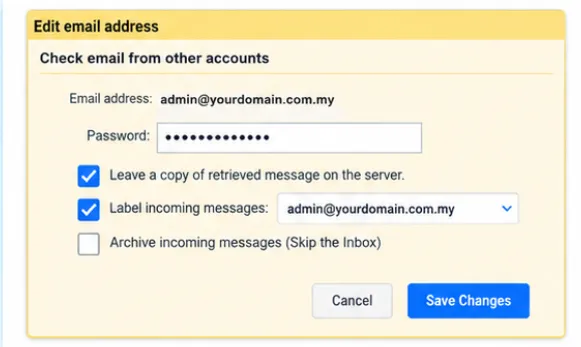
- Save the changes, select “Check mail now,” and confirm there is no error. Record the setting and result.
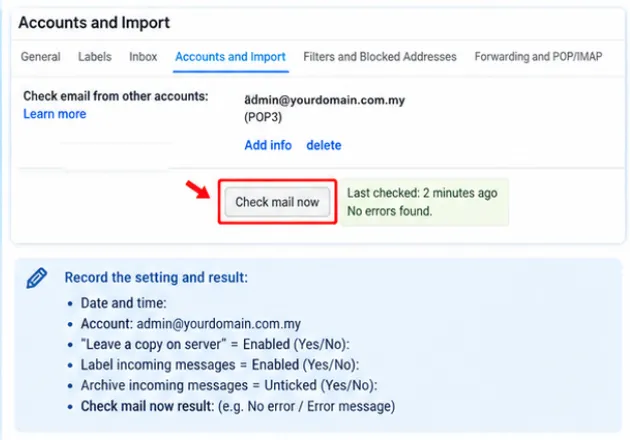
The conversation says this setting was switched on, but completion still needs to be verified in Gmail. This setting applies to future retrievals only; it does not put older messages back on the server.
4.2 Confirm the Source Messages in Gmail
- Search Gmail for known customer names, subjects, or date ranges.
- Check both Inbox and All Mail. Confirm that the expected older messages are present before copying anything.
- If the messages cannot be found, stop and investigate Gmail Trash, Spam, other labels, and account access before proceeding.
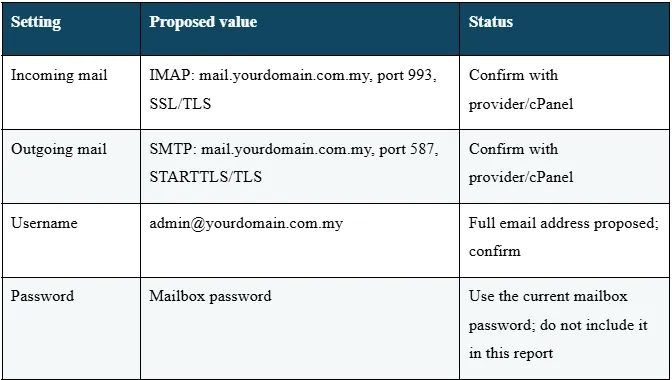
4.3 Confirm IMAP and SMTP Details Before Setup
4.4 Restore Messages Using Outlook and IMAP
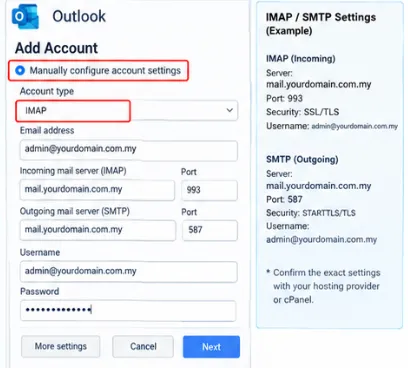
- In Outlook, add admin@yourdomain.com.my as a manually configured IMAP account using the provider-confirmed settings above.
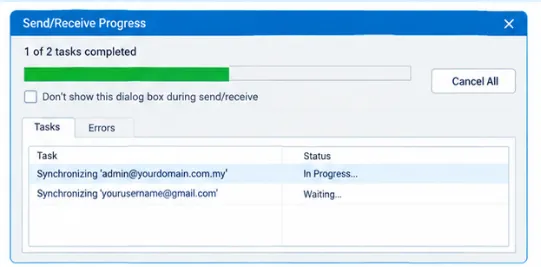
- Add yourusername@gmail.com to the same Outlook profile and allow both accounts to finish syncing.
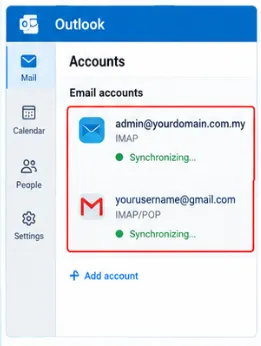
- In the Gmail account, locate the older messages in Inbox or All Mail. Select a manageable batch and copy it into the Inbox of admin@yourdomain.com.my. If using drag-and-drop, confirm the Gmail originals remain available after each batch.
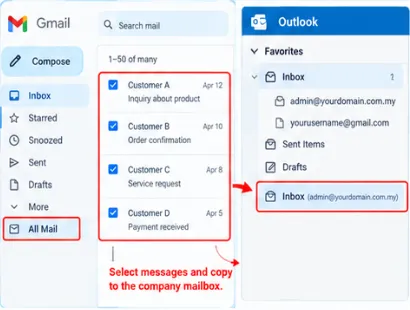
- Wait for Outlook to finish uploading/synchronizing each batch before starting the next. Keep Outlook open and connected during synchronization.
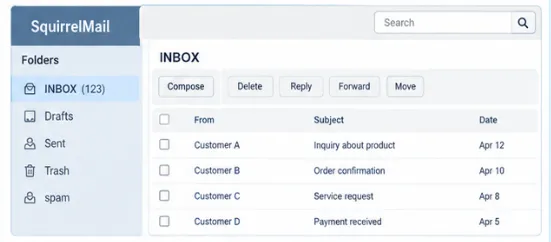
- Refresh SquirrelMail/webmail and confirm the copied messages appear in the company inbox. Repeat batches until the agreed scope is complete.
For a large mailbox, work in date-based batches and keep a record of the ranges copied. Do not delete or clean up the Gmail copy during restoration.
5.0 Verification and Recommendations
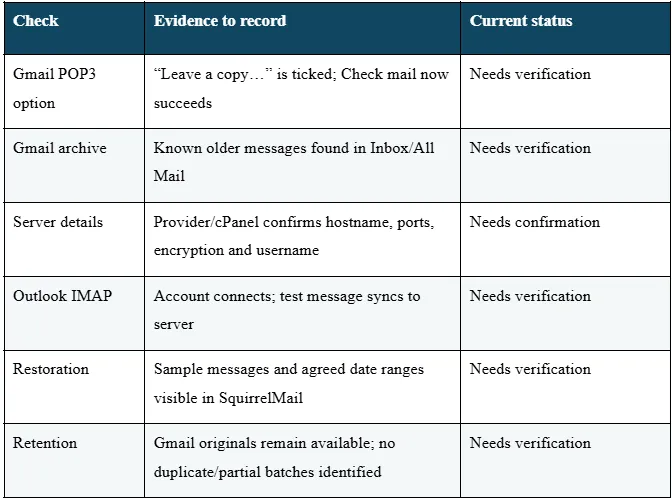
Complete the checks below and record the result. The conversation provides the reported diagnosis and proposed workflow; the checks in this table remain to be completed unless separately confirmed.
6.0 Conclusion
The troubleshooting conversation attributes the missing webmail history to Gmail POP3 retrieval without “Leave a copy of retrieved message on the server.” It reports that the older messages are in Gmail and proposes Outlook with IMAP as the restoration path. The issue should be treated as resolved only after Gmail contents are confirmed, the provider-approved server settings are used, and sample plus full-range restoration is verified in webmail.