
Backup WordPress With or Without Server Access
- Introduction
- Understand Big Two Assets
- Strategy A: Leveraging Softaculous
- Strategy B: Recreating public_html with “Imaging” Plugins
- Strategy C: Extracting the .sql.gz Database
- Strategy D: WP File Manager (The “Pseudo-FTP” Tool)
- Comparison: Dashboard vs. Server Backups
- Best Practices and Verification
- Conclusion
1.0 Introduction
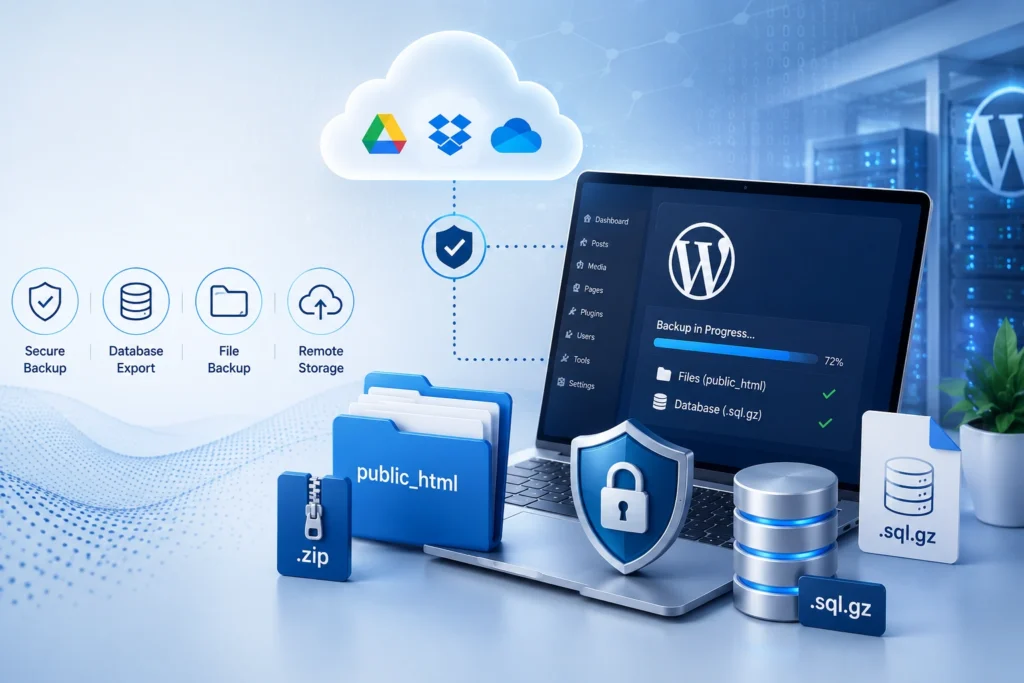
In professional web development, we are accustomed to having the “keys to the kingdom”, full access to the cPanel, FTP, and SSH. A standard backup usually involves logging into the server, zipping the ‘public_html’ folder, and exporting the database as a ‘.sql.gz’ file.
However, many situations ranging from client handovers to restricted corporate environments leave a developer with nothing but a WordPress Admin login. This article explains how to emulate a full server-level backup using only the WP-Admin dashboard, ensuring you still walk away with the equivalent of your public_html and .sql assets.
2.0 Understand Big Two Assets
Before diving into the tools, we must define what we are trying to replicate from the dashboard.
2.1 public_html
The public_html folder contains the WordPress core, your themes, your plugins, and most importantly, your uploads folder (images/PDFs).
- In WP-Admin: We use “Imaging” plugins to crawl these directories and bundle them into a ZIP file.
2.1 .sql.gz
The database is the “brain” of the site. It contains every word of content, user passwords, and plugin configurations.
- In WP-Admin: We use database-specific tools to trigger an export command that the server usually performs via phpMyAdmin.
3.0 Strategy A: Leveraging Softaculous
Many modern hosts include a Softaculous integration that can be accessed directly from the WordPress dashboard via a plugin. This is the closest you can get to “server-level” control without a cPanel login
3.1 The Softaculous WordPress Manager Plugin
If the server supports it, installing the Softaculous – Apps and WordPress Manager plugin allows you to:
- Create Local Backups: It triggers the server to create a backup of the installation exactly as cPanel would.
- Remote Archiving: You can send the backup directly to Google Drive, Dropbox, or OneDrive. This is vital because if you don’t have server access, you shouldn’t store your backup on the server itself.
- One-Click Restore: If something breaks while you are editing, you can roll back the site without needing to touch a single FTP setting.
4.0 Strategy B: Recreating public_html with "Imaging" Plugins
When you can’t zip the public_html folder manually, you need a plugin that can act as a file packer.
4.1 UpdraftPlus (The "Splitter" Method)
Large public_html folders often cause servers to “time out” during a backup. UpdraftPlus solves this by splitting your files into smaller ZIPs:
- Plugins ZIP: All your functional code.
- Themes ZIP: Your design and CSS.
- Uploads ZIP: Your entire media library (the largest part of public_html).
- Others: Your core configuration files.
4.2 All-in-One WP Migration (The "Single File" Method)
If you need to move the site to a new domain, this plugin is the industry standard. It creates a .wpress file. While this isn’t a standard .zip, it contains all your files and your database, and it handles the “search and replace” for URLs during restoration.
5.0 Strategy C: Extracting the .sql.gz Database
If you only need the data, or if the file backup is too large, you must prioritize the database.
5.1 Manual Database Exports
Using a plugin like WP-DB-Backup or the database tool within UpdraftPlus, you can generate a standalone .sql file.
- Compression: Always ensure “Gzip” is enabled in the settings. This turns a 100MB text file into a 10MB .sql.gz file, making it much easier to download via a slow browser connection.
6.0 Strategy D: WP File Manager (The "Pseudo-FTP" Tool)
If you need to manually grab a specific file like a customized .htaccess or a specific folder inside public_html, the WP File Manager plugin is your best friend.
6.1 Browsing the Root Directory
This plugin gives you a UI that looks exactly like a desktop file explorer.
- You can navigate to the root directory (the equivalent of your public_html).
- You can right-click any folder and select Compress.
- Once compressed, you can Download the file directly.
CRITICAL SECURITY: Always delete this plugin after use. Leaving a file manager active on a site is like leaving the front door of a house wide open.
7.0 Comparison: Dashboard vs. Server Backups
Asset | The “Normal” Way (Server) | The “Restricted” Way (Admin) |
File Structure | Zip the public_html folder via cPanel. | Use UpdraftPlus to zip Plugins/Themes/Uploads. |
Database | Export .sql via phpMyAdmin. | Use Softaculous Plugin or WP-DB-Backup. |
Site Config | Download wp-config.php via FTP. | Use WP File Manager to download the file. |
Large Files | Use SSH/Terminal to compress. | Use All-in-One Migration with “Exclude Media” if needed. |
8.0 Best Practices and Verification
A backup is only a “hope” until it is verified. Before you log out of that restricted WP-Admin, follow these steps:
- Check the File Size: If your uploads folder is 5GB but your downloaded ZIP is only 200MB, the backup failed midway.
- Verify the SQL: Open your .sql file in a text editor (like VS Code or Notepad++). Scroll to the bottom. If you see Dump completed on [Date], the database export is successful.
- Test the Restore: If possible, try to “Import” your backup into a local environment (like LocalWP) to ensure everything looks correct before you leave the live site.
9.0 Conclusion
Even without direct server access, WordPress websites can still be backed up effectively through the WP-Admin dashboard. By using tools such as Softaculous, UpdraftPlus, All-in-One WP Migration, and WP File Manager, developers can recreate important assets like public_html files and .sql.gz database exports. With proper backup verification and secure storage practices, these methods provide a reliable solution for protecting website data in restricted environments.
Get a professional website built by Latitude Innovation.
WhatsApp Us: https://wa.me/60104348799/
Our Services: https://latitudeinnovation.com.my/web-design-service/